Write To
Overview
The Write To cloud app is an action step that can be used to write data to an Eloqua record. It comes in two flavors, depending on where you're writing data:
- Write to Contact — writes data to a contact record from a campaign canvas, contact program, or CDO program. The data written to the contact record can be copied from a different contact field or from a CDO record. You can also write static values or a current timestamp to the contact record.
- Write to Custom Object (CDO) — writes data to a CDO record from a campaign canvas, contact program, or CDO program. The data written to the CDO record can be copied from a contact field or from another CDO record. You can also write static values or a current timestamp to the CDO record.
Installation
See the Install this card instructions for guidance on how to install our Tegrita Cloud Apps.
Write to Contact
The Write to Contact cloud app writes data to a contact record. The data can be copied from a different contact field or from a CDO record, and you can also write static values or a current timestamp to the contact record.
Using the Write to Contact Cloud App
Add the Write to Contact cloud app to a campaign or program canvas like any other action step:
- Drag it out from the Campaign Steps > Actions toolbar.
- Once you've added it to a canvas, double-click the cloud app icon, then click the pencil icon in the resulting screen to open the cloud app configuration dialog.
If the cloud app is found on a campaign canvas or a contact program, you'll see a screen that looks like this:
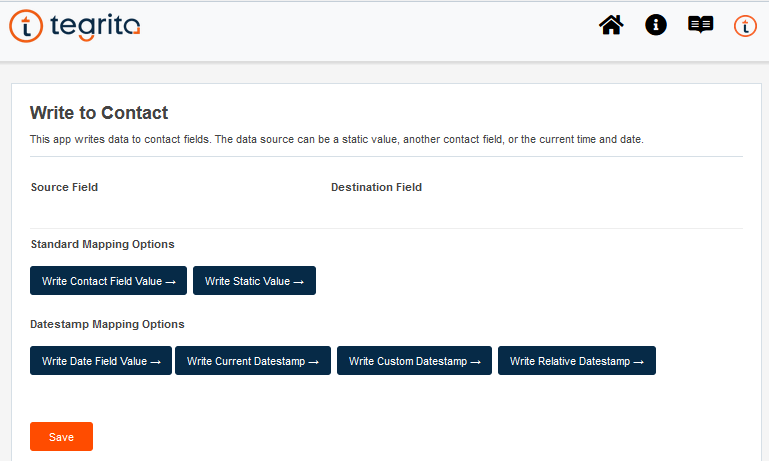
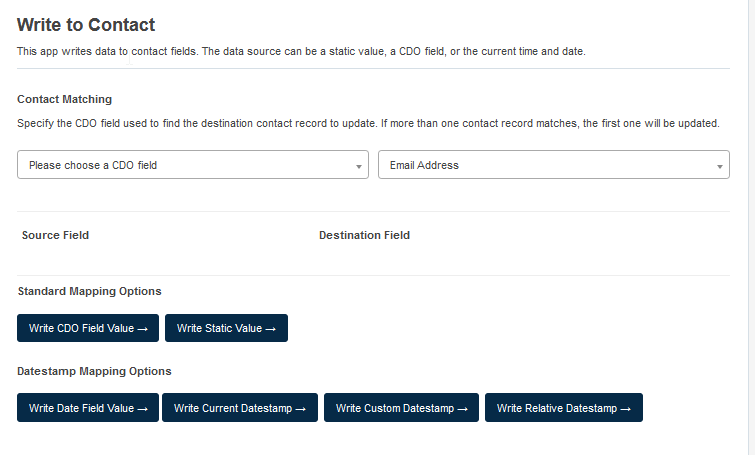
If the cloud app is found on a CDO program canvas, the screen looks like this:
General Operation
Like any Eloqua action step, the Write to Contact cloud app uses incoming records as its primary input. When called from a campaign canvas or a contact program canvas, the incoming records are contact records, and any configured actions will be applied to each contact record as it is processed by the app. Data can be copied from one field to another on the contact record, and static values or date stamps can be copied to specified fields.
When called from a CDO program canvas, incoming CDO records are treated as the source for any write-to-contact actions. The Contact Matching section at the top of the screen lets you control which contact record is written to from the CDO record. In most cases, you will want to find contact records using the Email Address field. Specify the CDO field that contains the email address to use for contact matching in the left-hand menu:

If no matching record is found, no data will be written. If more than one matching record is found, the first one found will be the one that is updated.
It is possible to use another field on the contact record for matching. In that case, just specify the contact field to match in the right-hand menu and the CDO field that contains the matching value in the left-hand menu.
Configuring Write Options
The blue buttons in the app allow you to configure the way in which data is written to contact fields. Each button's action is described below.
Write Contact Field Value
This button is used to copy data from one field on the contact record to another contact field. When you click the Write Contact Field Value button, you'll see the following choices:

On the left, use the drop-down menu to choose the source contact field. This is the field from which data will be copied. On the right, use the drop-down menu to choose the destination contact field. This is the field to which data will be written. When a contact passes through the Write to Contact cloud app on a campaign or program canvas, the value found in the source field will be copied to the destination field.
Note
You cannot use this button to write data to or from a date field. Use the Write Date Field Value button or the Write Datestamp button if you need to write data to a date field.
Write CDO Field Value
When called from a CDO program canvas, this option is called Write CDO Field Value and lets you specify the source CDO field to copy to the specified contact field.
Write Static Value
The Write Static Value button is used to write a static, non-changing, value to a contact field. All records written to by the cloud app action step will receive the same value. When you click the Write Static Value button, you'll see the following controls:

Enter the value that you'd like to write to the contact field in the text box at left. Then choose a destination field in the drop-down menu at right. Note that you cannot write a static value to a date field.
Write Date Field Value
Use the Write Date Field Value button to copy a date or time from one date field to another date field. The drop-down menu on the left shows all the date fields on the contact record or CDO record, including system-maintained date fields like Date Modified and Date Created. Choose the field that you'd like to copy a value from, and then choose the destination field from the drop-down menu on the right:

Note
You cannot write data to system-maintained fields.
Write Current Datestamp
This button lets you write the current date and time to the specified field. Just choose the destination field from the drop-down menu on the right:

Write Custom Datestamp
This button lets you write a custom date to the specified field. The format is
mm/dd/yyyy. You can also click the source field to select a date from the
calendar:

Write Relative Datestamp
This button lets you write a relative date to the specified field. The format to
set the relative date will look like the following examples: +100 days,
-5 Weeks, +10 months, etc. It will calculate the date relative to the date
the record entered the action step. For example, if the relative date is
+5 days, and today is November 14th, November 19th will be inserted as the
date. The time will be the time the record was processed in the step, rather
than midnight:

Delete Buttons
If you no longer want to write data to a particular destination field, just click the Delete button to the right of that row to remove the write configuration for that field.
Saving a Configuration
Click the Save button at lower left to save the cloud app configuration. If you make changes and want to discard them, click the X at upper right to exit without saving.
Configuring Error Routing
Like any other action step, you can configure how to handle records that encounter an error. You can send these records to another step on the canvas by configuring a target step for any contact that errors out. Double-click the cloud app on the program or campaign canvas, then click the Routing tab:
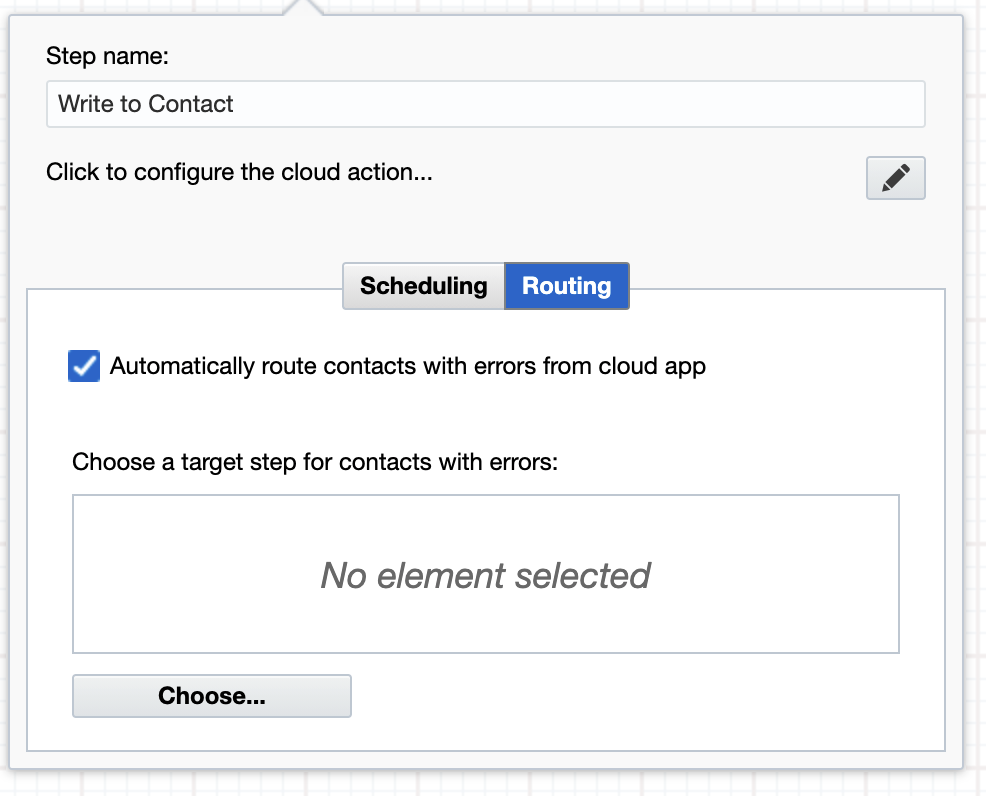
Click the Automatically route contacts with errors from cloud app check box to enable routing, then click the Choose... button to pick the step to which you'd like to send contacts that trigger an error.
Write to Custom Object (CDO)
The Write to Custom Object (CDO) cloud app writes data to a CDO record. The data can be copied from a contact field or from another CDO record, and you can also write static values or a current timestamp to the CDO record.
Using the Write to Custom Object Cloud App
Add the Write to Custom Object cloud app to a campaign or program canvas like any other action step:
- Drag it out from the Campaign Steps > Actions toolbar.
- Once you've added it to a canvas, double-click the cloud app icon, then click the pencil icon in the resulting screen to open the cloud app configuration dialog.
The first time you open the cloud app, you'll see a screen that lets you specify the CDO that you want to write to. Choose the CDO (you can start typing the CDO name to narrow the list of choices), then click Next.
If you've selected a CDO that is configured to use a unique key field, you'll see a screen like this. This shows what the screen will look like when run from a campaign canvas:
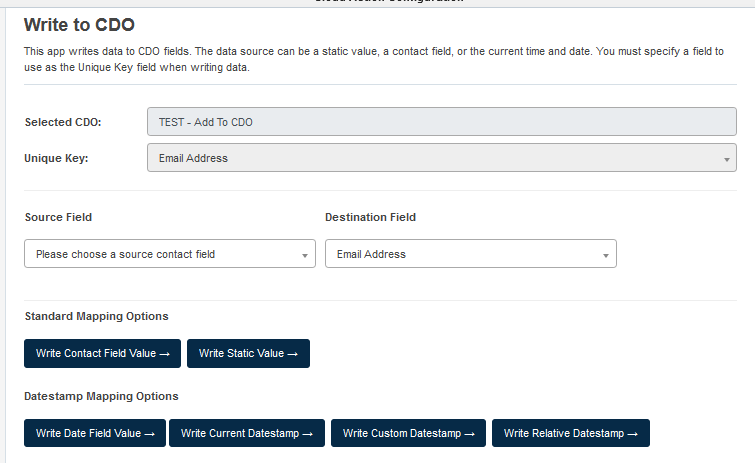
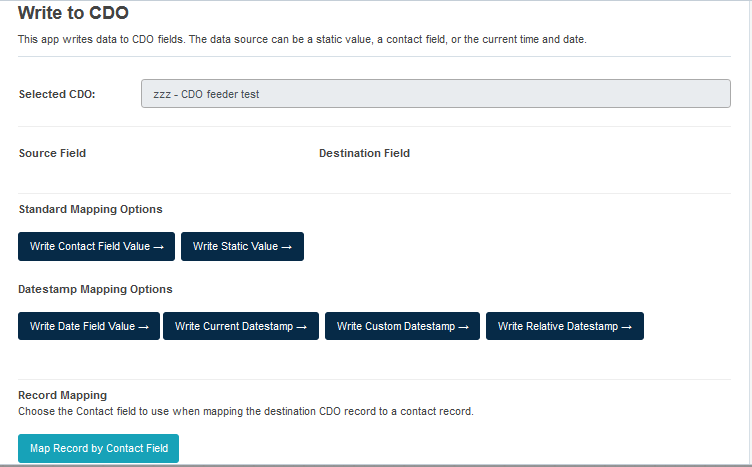
If the target CDO is not configured for a unique key, the screen is a little bit simpler. This shows the screen you'll see when running the cloud app from a CDO program canvas:
General Operation
Like any Eloqua action step, the Write to Custom Object cloud app uses incoming records as its primary input. When called from a campaign canvas or a contact program canvas, the incoming records are contact records; when called from a CDO program, the incoming records are CDO records. Data can be copied from contact or CDO fields to specified CDO fields, and static values or date stamps can be applied to CDO fields.
CDOs With Unique Keys
When writing to a CDO that is set up to use a unique key, you'll need to specify the field to use as the unique key in the destination CDO. Choose the Source Field that will be used as the unique key in the drop-down menu on the left. This is a mandatory field for a CDO with unique keys:

When writing to the CDO, the unique key value is used to determine whether to write to an existing record, or to create a new record in the CDO, as follows:
- If the CDO contains an existing record that matches the Unique Key value, that record will be updated with the values configured in the Write to Custom Object step.
- If the CDO does not contain an existing record that matches the Unique Key value, a new record will be created with the unique key value in the destination field.
CDOs Without Unique Keys
If the CDO you specify as the destination is not configured to use a unique key, you will not need to specify the field used for the unique key. Every contact or CDO record passed through the action step will create a new destination CDO record.
Configuring the Write Fields
The blue buttons allow you to configure the way in which data is written to CDO fields. Each button's action is described below.
Write Contact Field Value
This button is used to copy data from a field on the contact record to a field on the CDO record. When you click the Write Contact Field Value button, you'll see the following choices:

On the left, use the drop-down menu to choose the source contact field. This is the field from which data will be copied. On the right, use the drop-down menu to choose the destination CDO field. This is the field to which data will be written. When a contact passes through the Write to CDO cloud app on a campaign or program canvas, the value found in the source field will be copied to the destination field.
Note
You cannot use this button to write data to or from a date field. Use the Write Date Field Value button or the Write Datestamp button if you need to write data to a date field.
Write CDO Field Value
When the action step is used on a CDO program canvas, you can specify a CDO field to copy data from using the Write CDO Field Value button.
Write Static Value
The Write Static Value button is used to write a static, non-changing, value to a CDO field. All records written to by the Write to CDO cloud app action step will use the same value. When you click the Write Static Value button, you'll see the following controls:

Enter the value that you'd like to write to the selected field in the text box at left. Then choose a destination field in the drop-down menu at right. Note that you cannot write a static value to a date field.
Write Date Field Value
Use the Write Date Field Value button to copy a date or time from one date field to another date field. The drop-down menu on the left shows all the date fields on the contact or CDO record, including system-maintained date fields like Date Modified and Date Created. Choose the field that you'd like to copy a value from, and then choose the destination field from the drop-down menu on the right:

Note
You cannot write data to system-maintained fields.
Write Current Datestamp
This button lets you write the current date and time to the specified field. Just choose the destination field from the drop-down menu on the right:

Write Relative Datestamp
This button lets you write a relative date to the specified field. The format to
set the relative date will look like the following examples: +100 days,
-5 Weeks, +10 months, etc. It will calculate the date relative to the date
the record entered the action step. For example, if the relative date is
+5 days, and today is November 14th, November 19th will be inserted as the
date. The time will be the time the record was processed in the step, rather
than midnight:

Write Custom Datestamp
This button lets you write a custom date to the specified field. The format is
mm/dd/yyyy. You can also click the source field to select a date from the
calendar:

Delete Buttons
If you no longer want to write data to a particular destination field, just click the Delete button to the right of the row to remove the write configuration for that field.
Record Mapping
The Record Mapping menu lets you decide whether or not to map the destination CDO record to a contact record. If you want to map the destination CDO record to a contact record, click the Map Record by Contact Field or Map Record by CDO Field button. A new configuration setting appears:

Choose the contact field or CDO field you'd like to use to map the destination CDO to a contact record. Mapping is done by matching the value of the selected field on the contact table. When more than one contact record matches the criteria, the first record returned is selected.
Saving a Configuration
Click the Save button at lower left to save the cloud app configuration. If you have made changes and want to discard them, click the X at upper right to exit without saving.
Configuring Error Routing
Like any other action step, you can configure how to handle records that encounter an error. You can send these records to another step on the canvas by configuring a target step for any contact that errors out. Double-click the cloud app on the program or campaign canvas, then click the Routing tab:
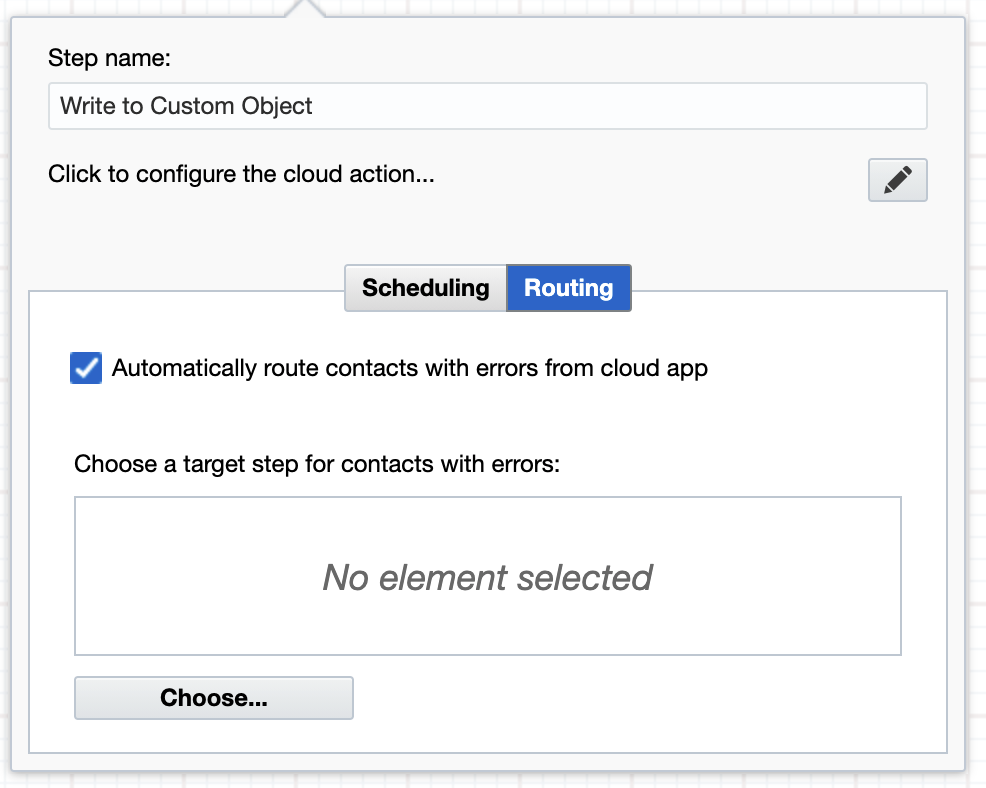
Click the Automatically route contacts with errors from cloud app check box to enable routing, then click the Choose... button to pick the step to which you'd like to send contacts that trigger an error.