Identify Verification by Ekata
Overview
The Identify Verification by Ekata cloud app uses the Ekata API to retrieve a risk score based on the information provided by the contact. The score is written to an Eloqua contact field, and you can then create workflows in Eloqua based on the risk score.
Installation
See the Install this card instructions for guidance on how to install our Tegrita Cloud Apps.
Locating the App
You can find the app in the app marketplace in Eloqua. To access the global settings, locate the app in Settings > Apps — the app is called Tegrita – Identify Verification by Ekata. See the screenshot below:

Global Settings
The global settings of the app can be accessed through the app marketplace in Eloqua. The global settings allow you to set the following:
- Set the Ekata API Key.
- Select the desired Risk Score Contact Field that will be used to write the risk score to the selected field in Eloqua.
- Set the Custom Data Object that will be used to write the response details from Ekata.
Click the app in the Cloud App marketplace to open a more detailed view of the settings. Once in this view, click the Gear icon to access the global settings:
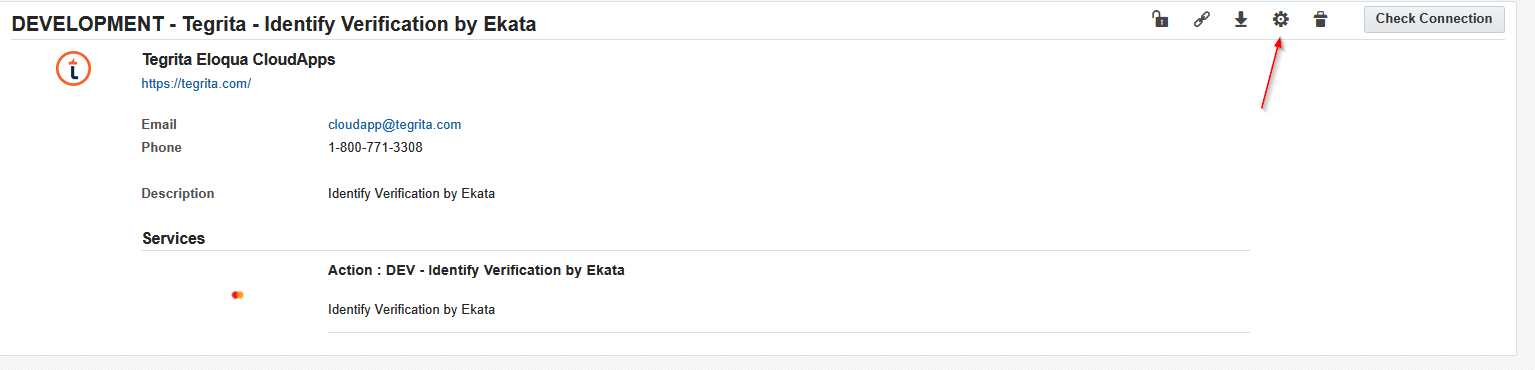
Entering the Ekata API Key
Once you have the global settings open, enter the API key provided by Ekata. If you are unable to find the Ekata API key, Ekata has provided an article found here: How do I access my API key?
Enter the API key in the Ekata API Key field and click the Save button at the bottom left of the window to commit the changes:

Note
There is no warning if an incorrect API key is entered; however, you will see an error in the app step once it is used on the campaign canvas if the API key is incorrect.
Setting the Risk Score Contact Field
Setting the Risk Score Contact Field in the global settings sets the default field for when the app is used in a workflow. Once the app is placed, you can still update the Risk Score field if needed from the workflow app step.
Click the text box next to the Risk Score Contact Field to enter the desired field. It will open a dropdown menu where you can select the field, or you can type in the field name to narrow down the results:
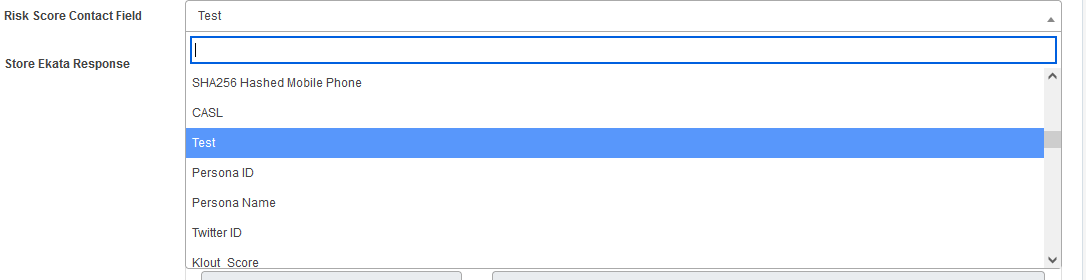
Click Save at the bottom of the page to commit the changes.
Setting the Store Ekata Response CDO
You can create a custom object in Eloqua to store the API response from Ekata.
Click the drop-down menu next to Select Destination CDO to select the custom data object. Once you have selected one, click Load CDO Fields to populate the fields. The app will automatically map the fields to the matching CDO fields of the same name.
Click Save at the bottom of the app to commit the change.

The CDO should be created with the following text fields on the CDO record. The warnings field should be a large text field.
Using the App in Workflows
Placing the App in a Workflow
The app is available as an Action step that you can drag onto the workflow canvas for programs or campaigns.
To access the app step, click the Arrow next to Campaign Steps to get the full list of action steps:
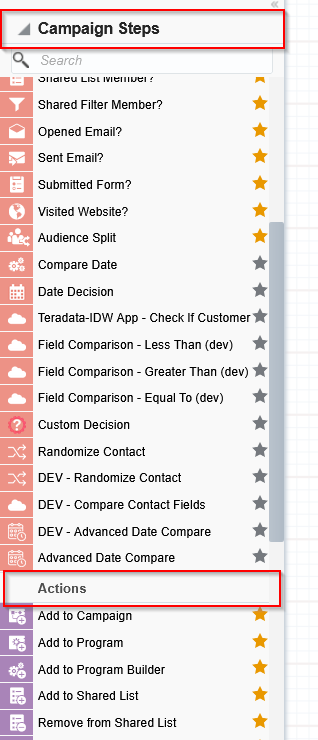
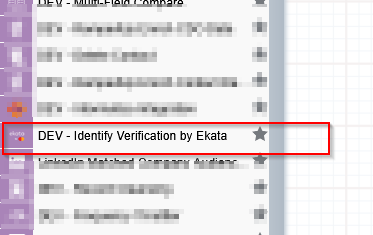
Scroll to the Action steps at the bottom of the list — the app will be called Identify Verification by Ekata.
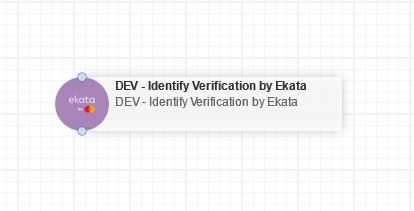
Click and drag the step onto the canvas, where you will be able to connect it to other steps and configure the settings:
Once you have placed it onto the canvas, click Save at the top right of the canvas editor window.
Configuring the App Step
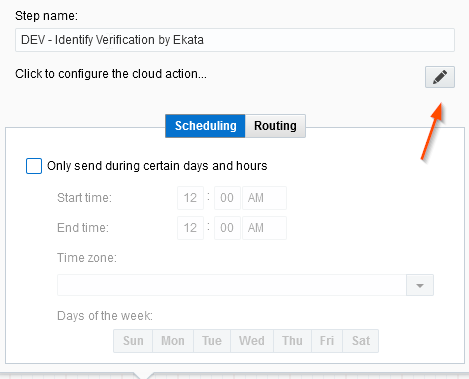
With the app step now on the campaign canvas, you can begin setting the configuration. Double-click the app to open the configuration window and click the pencil icon to update the field mappings:
You'll see a screen that looks like this:
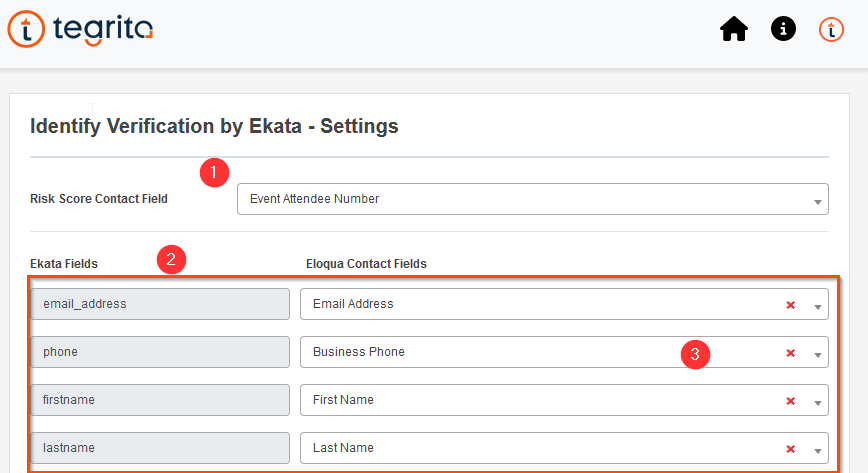
- In the Settings window you can change the Risk Score Contact Field to any text field you wish. The default setting is what is set in the global app settings.
- Set the Eloqua fields that will be used to calculate the risk score and map them to the corresponding Ekata fields. The Email Address field is the only field that is required; all other fields are optional.
- Click the drop-down menu to select a contact field, or click the x if you do not want to pass any value to the Ekata field.
- Once the settings are finished, click Save at the bottom of the window and save the campaign or program workflow.
App Errors and Logging
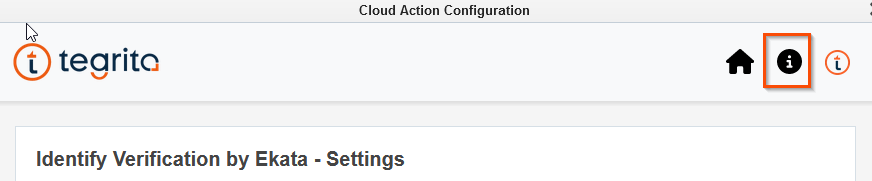
You can view the results and errors returned from contacts running through the app. To view the logs, click the Information icon in the top right:
The logs will show the risk score returned for every contact that ran through the step, and whether there were any errors while checking the contact. For example:
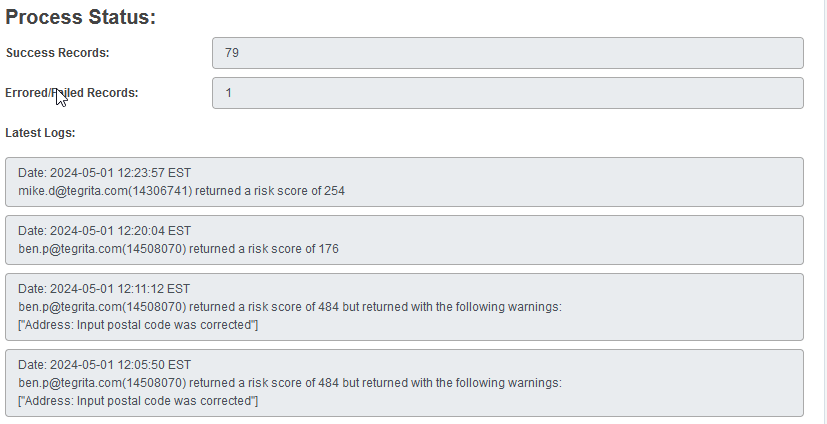
You will also see an authentication failure in the logs if the API key set in the global settings is incorrect.
Click the Home icon to return to the app step settings.
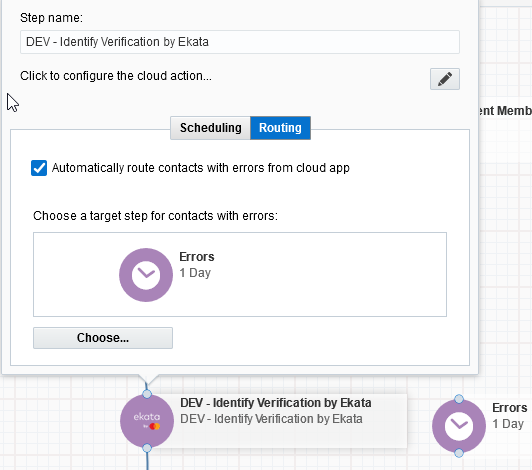
You can also set contacts who had an error to route to a step of your choosing. Click the Routing tab when you first open the app from the workflow and enable Automatically route contacts with errors from cloud app, then choose a workflow step you want them routed to: