CDO Record Mapper
Overview
The CDO Record Mapper cloud app action step maps CDO records to contacts based on the matching fields that you specify. This cloud app is only available on CDO program canvases.
Installation
See the Install this card instructions for guidance on how to install our Tegrita Cloud Apps.
Using the CDO Record Mapper Cloud App
Add the CDO Record Mapper cloud app to a CDO program canvas like any other action step:
- Drag it out from the Campaign Steps > Actions toolbar on the left side of the program canvas screen.
- Drag the action step onto the canvas, then double-click the cloud app icon and click the pencil icon in the resulting screen to open the cloud app configuration dialog.
You'll see a screen that looks like this:
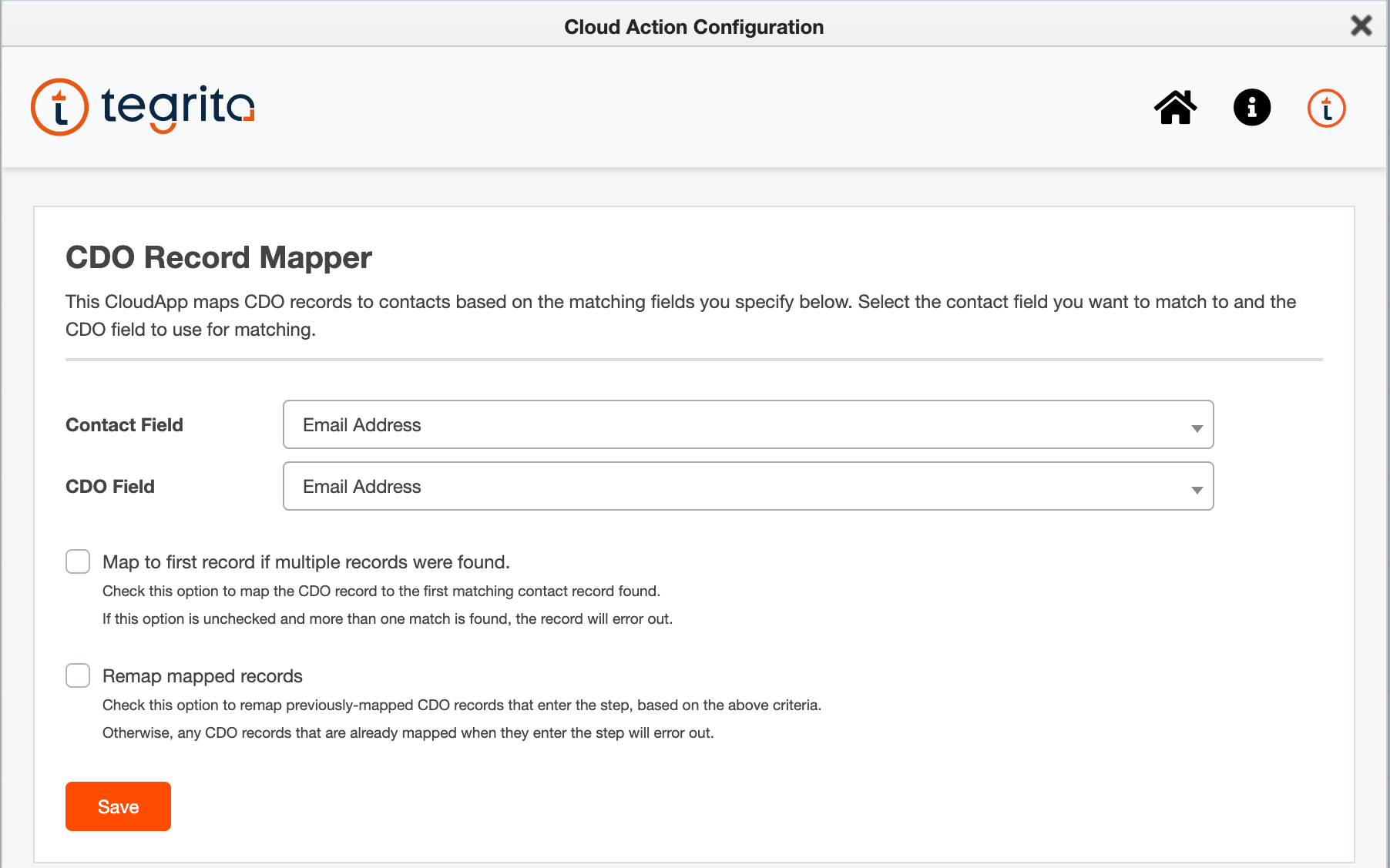
Use the Contact Field and CDO Field menus to choose which CDO field value to use to look for a contact record with a matching value in the contact field you specify. If a matching contact record is found, the cloud app will map the CDO record to it. If no matching contact record is found, the CDO record will error out.
Two options give you some additional control:
Map to First Record if Multiple Records are Found
This option lets you handle the situation where more than one contact record is found to match the CDO field value you specified. If the option is not checked, the CDO record will error out. If the option is checked, the cloud app will map the CDO record to the first contact record it finds.
Remap Mapped Records
If this option is checked, any CDO records that were already mapped when they entered the action step may be remapped to new contact records. If this option is not checked, previously-mapped CDO records that enter the cloud app action step will error out.
Typical Configuration
The typical way to use this app is to place it on the CDO program canvas immediately downstream from a Has Linked Contact? decision step, on the No path, as shown below. That way, the CDO records that enter the step are not already mapped:
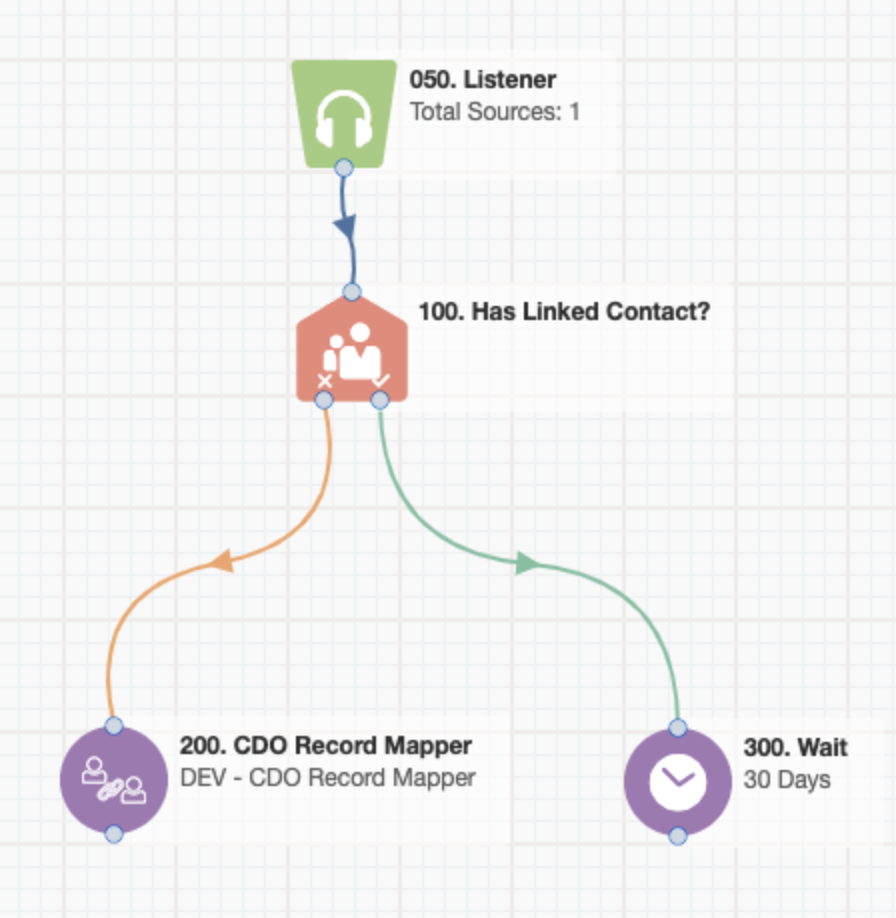
In most cases, you will want to match an email field on the CDO record with the Email Address field on the contact record. This ensures that you will get a unique match if one is found. That said, the app does allow you to use other fields, like a company-specific ID number, to do the matching.
Because several common situations — a previously-mapped record, no match found, multiple matches found — may cause records to error out, depending on configuration, it is a good idea to use the Routing option on the action step to specify a destination for any record that runs into an error.