Rover
Overview
The Rover CloudApp is an action step that allows campaigns to send a push notification to a contact via the Rover API. You can define the specific Rover webhooks to use, as well as custom Context Attributes.
Installation
See the Install this card instructions for guidance on how to install our Tegrita Cloud Apps.
CloudApp Global Configurations
The CloudApp has a few mandatory global settings that must be configured prior to its use. Global configuration can be accessed by going to Settings > My Apps > Tegrita - Rover V3, then clicking the gear icon to open the modal used to configure the CloudApp:
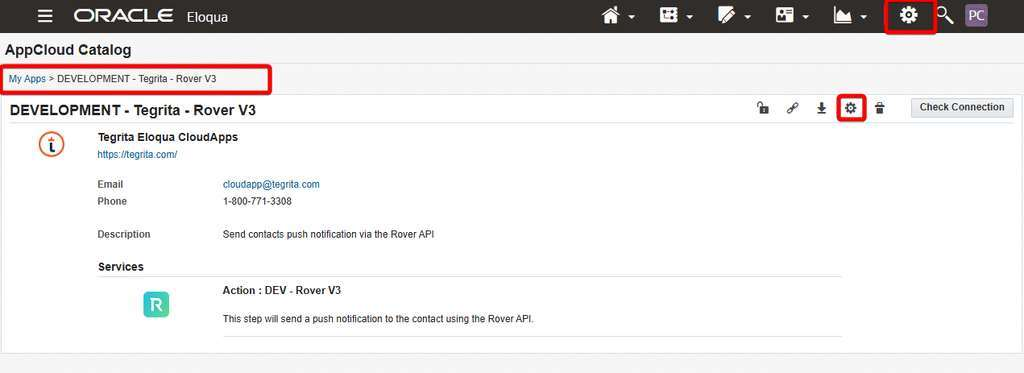
See the screenshot below for all the available globally configured options:
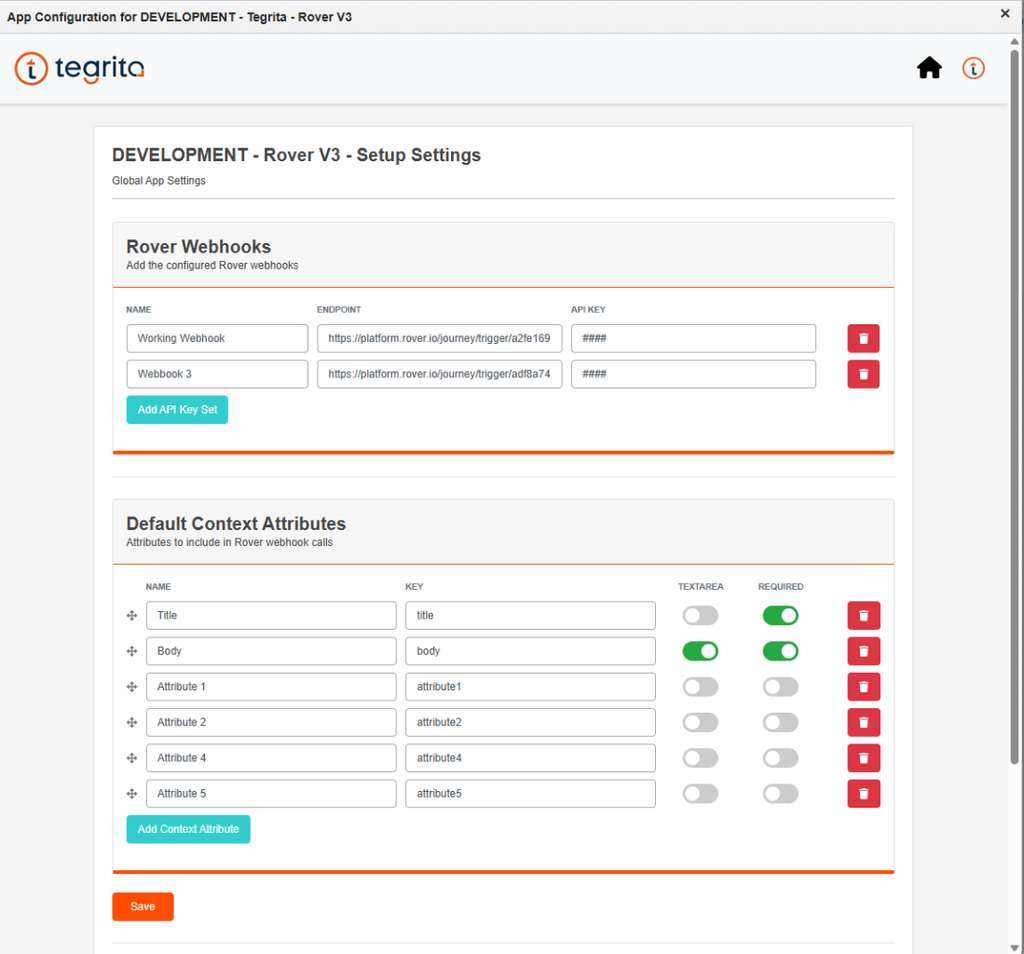
Prior to using the CloudApp, at least one Rover Webhook must be configured along with the appropriate Default Context Attributes. By default, Rover uses Title and Body as the default Context Attributes. Additional Context Attributes can be set up based on the needs of the Rover journey.
Rover Webhooks
Each row of the Rover Webhooks grid registers one Rover journey endpoint that the CloudApp is allowed to call:
- Name — A label for the webhook, used to identify it when configuring the action step on a canvas.
- Endpoint — The journey trigger endpoint obtained from Rover.
- API Key — The API key required to authenticate requests sent to that endpoint.
Click Add API Key Set to register an additional webhook, and remove any rows that are no longer needed.
Default Context Attributes
The Default Context Attributes grid defines the attributes that are included in Rover webhook calls by default:
- Name — A descriptive label for the attribute.
- Key — The attribute name as Rover expects it in the request payload.
- Required — Select this option if a value must be supplied before the notification can be sent.
An additional column controls the attribute's input style. Click Add Context Attribute to add another attribute, then click Save to store the global settings.
Where to Find Rover Webhook Details
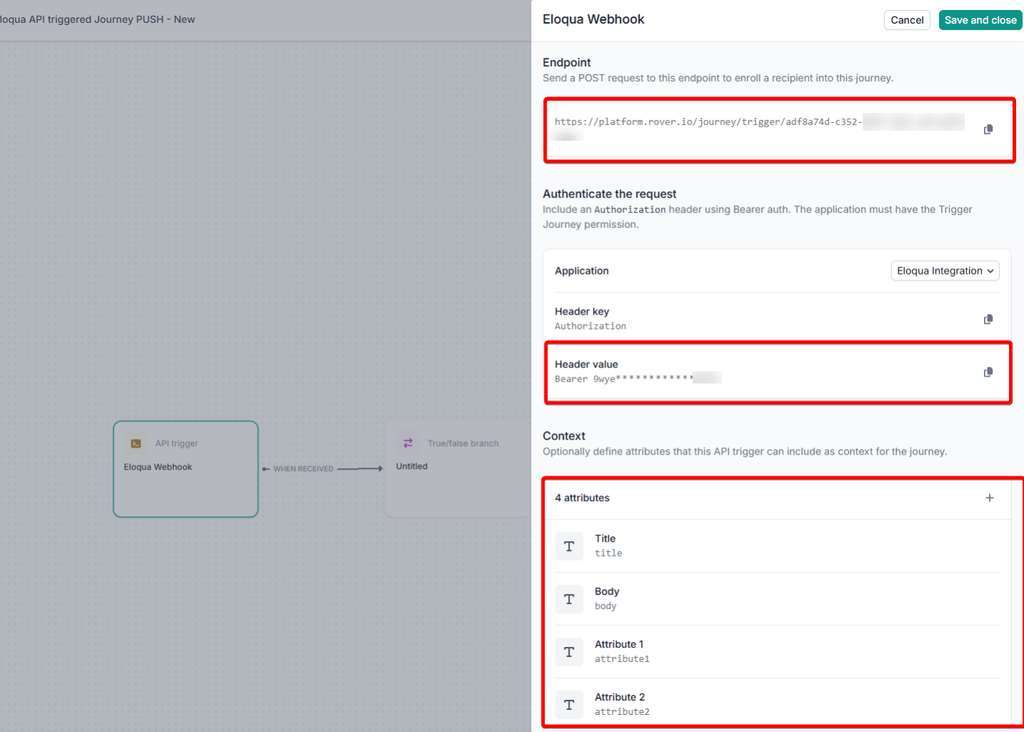
The webhook details entered in the global settings are provided by Rover:
- Open the Rover journey you wish to send contacts to.
- Locate the API Trigger step and open it.
-
Within this step, the Endpoint URL along with the Authorization Header Key are provided:
-
This is also where you define the Context Attributes that the journey will use.
Locating the Rover CloudApp
Add the CloudApp to a campaign canvas like any other action step:
-
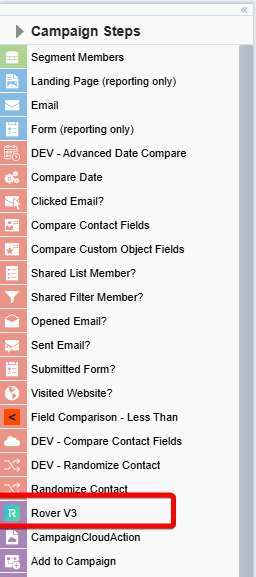
Drag it out from the Campaign Steps > Actions toolbar on the left side of the campaign canvas screen:
-
Once you've added it to a canvas, double-click the CloudApp icon, then click the pencil icon in the resulting screen to open the CloudApp configuration dialog.
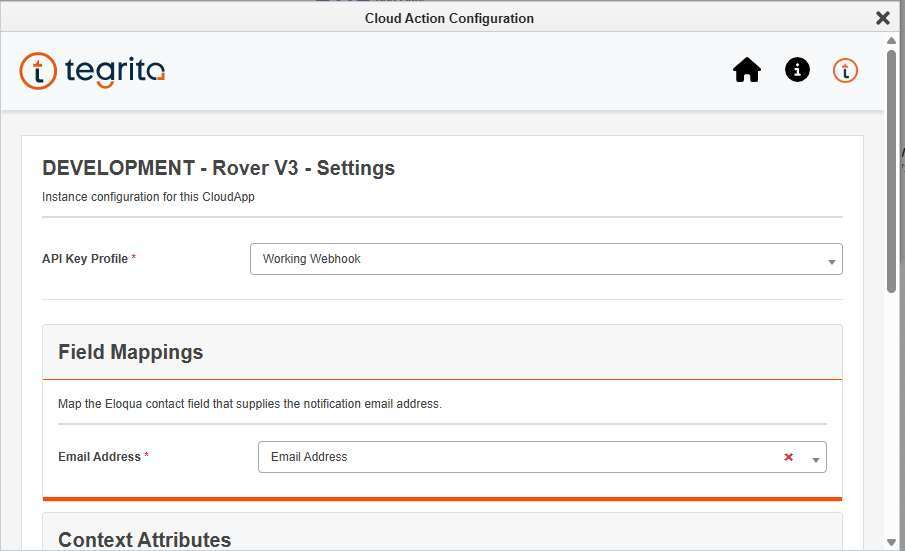
You'll see a screen that looks like this:
Using the Rover CloudApp
To fully configure the Rover CloudApp, the following must be defined:
- Webhook — The Rover webhook endpoint you would like to send Eloqua contacts to. This is selected from the API Key Profile menu on the step configuration screen.
- Email Address — The email address field used to pass the contact's email address to Rover. This field mapping is required, so a contact field must be selected before the step can be saved.
- Context Attributes — The fields that are defined on the Rover journey. The values entered here are passed to the Rover webhook, and any attribute marked as required must have a value.
Context Attribute Intellisense
Context Attributes support passing field merge data to Rover, and this field
merge data is specific to the contact. Start by typing a curly bracket ({).
Once { is detected, a dropdown menu appears with the available contact fields
that can be used to pass data to Rover. Select the desired field, and the field
merge syntax is completed automatically. Text that is highlighted in yellow
indicates a field merge:
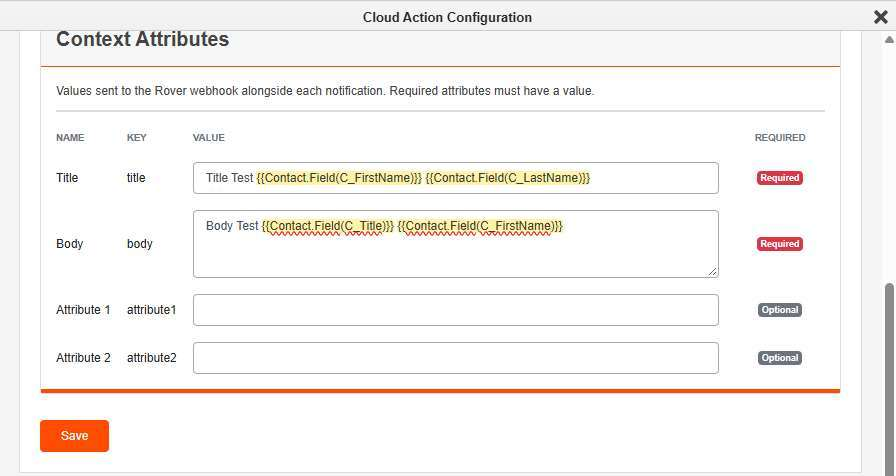
For example:
Title Test {{Contact.Field(C_FirstName)}} {{Contact.Field(C_LastName)}}
CloudApp Flow
When an Eloqua contact is passed to the CloudApp, the following steps occur in order:
- The finalized string or data to be passed to the defined Rover Context Attribute is built — the field merge data for the contact is retrieved and each field merge is replaced with the retrieved data. This occurs for every Context Attribute that has field merges defined.
- The complete payload to be passed to Rover is built.
- The payload is passed to the defined Rover webhook endpoint, using the Authorization Header Key defined for that webhook.
- A log entry is created for the response provided by the webhook.
- The contact is moved to the next step, or to the error path if the webhook rejected the request.