Record Cleansing
Overview
The Record Cleansing CloudApp enables cleansing of contact fields or CDO fields. You are able to define one or more contact fields as inputs, then run actions such as trim, concatenate, adjust case (propercase or lowercase), and perform lookups to populate fields. The data can then be mapped back to that same field or a separate field.
Installation
See the Install this card instructions for guidance on how to install our Tegrita Cloud Apps.
Locating the Record Cleansing CloudApp
Add the CloudApp to a program canvas like any other action step:
- Drag it out from the Program Steps > Actions toolbar on the left side of the campaign canvas screen.
- Once you've added it to a canvas, double-click the CloudApp icon, then click the pencil icon in the resulting screen to open the CloudApp configuration dialog.
The CloudApp looks like this in the toolbar:
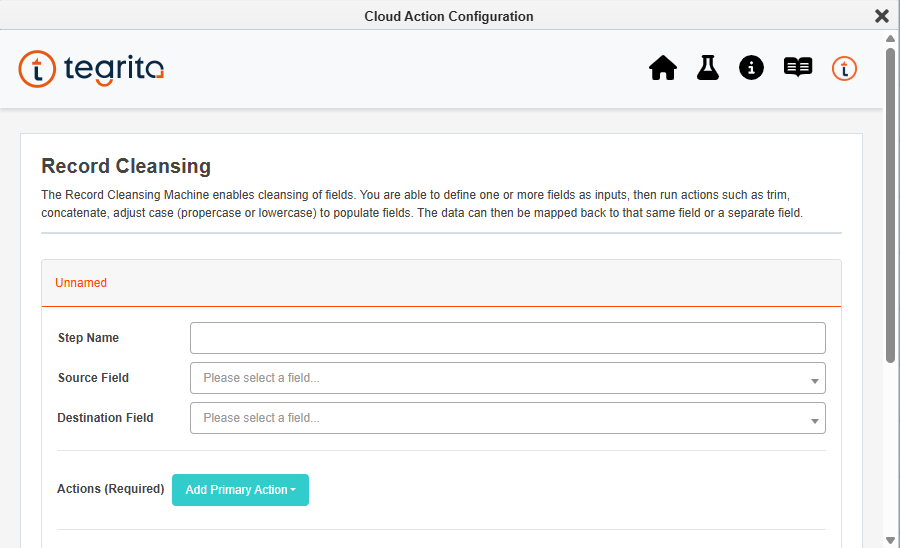
You'll see a configuration screen that looks like this:
Using the Record Cleansing CloudApp
The Record Cleansing CloudApp allows you to configure as many steps as needed to update your desired fields. With the configuration settings open on the canvas, make the following selections to configure the app:
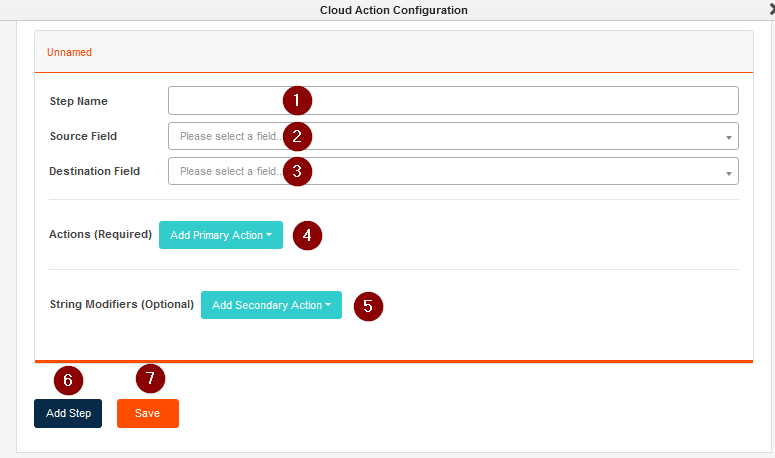
- Enter a name for the step.
- Select the source contact or CDO field.
- Select the destination contact or CDO field.
- Choose an action you wish to perform.
- Optionally select a string modifier to format the final value being written to the destination field.
- You can add more steps by clicking Add Step.
- Once you have configured your steps, click Save to commit the changes.
Steps will execute in the order that they are placed. To change the order, click and hold the step name and drag it above or below any other steps that are set up in the configuration.
When the step is placed on a CDO canvas, only fields that are present in the CDO will be available for selection as the source/destination field and as a field merge.
Testing Your Step
You can "simulate" the actions of the step by clicking the Lab Icon in the top right of the app. This will allow you to enter a contact email address or a unique CDO identifier to test the actions on:

Note
Due to this being a simulation, no updates will happen to the record. This also means that if a step is dependent on a previous step to manipulate the value, it will not use the manipulated value but rather the current value of the record.
Record Cleansing Logging
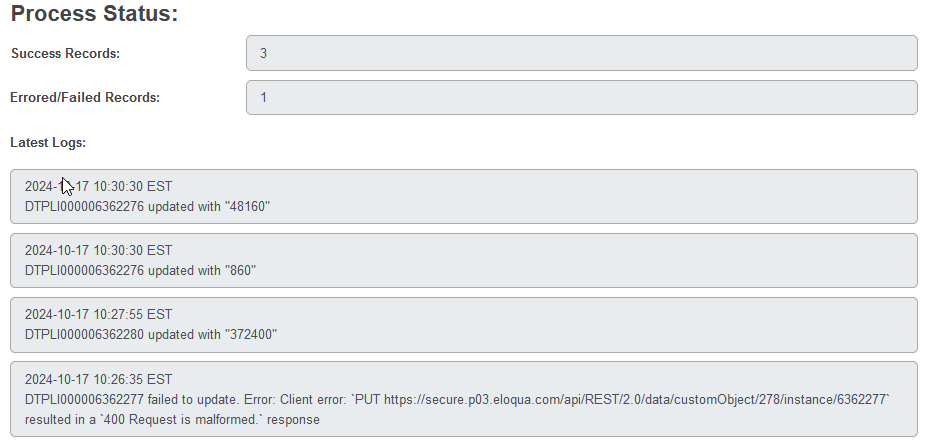
You can view the results of the Record Cleansing CloudApp by clicking the i icon in the app. This will show you both success and failures performed by the CloudApp:

This is handy for checking why a contact failed with an error or to see if the final values are what you expected:
Record Cleansing CloudApp String Modifiers
String modifiers can be optionally set on the step and format the final value that will be written to the destination field from the Actions step. Below are the available modifiers to choose from:
- Trim — Strip whitespace from the beginning and end of a string.
- Trim Left — Strip whitespace from the beginning of a string.
- Trim Right — Strip whitespace from the end of a string.
- Lowercase — Turns all letters to lowercase.
- Uppercase — Turns all letters to uppercase.
- Propercase — Capitalizes the first letter of each word.
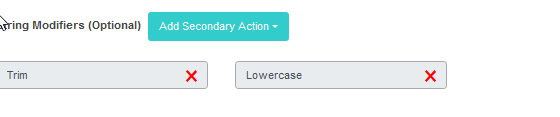
You can specify multiple modifiers to run on the final value, and they will be run in the order that they are listed. In the example below, the app will first Trim the final value and then put it in lowercase:
Record Cleansing CloudApp Actions
The Record Cleansing CloudApp has a number of actions to choose from that will update the destination field you select. An action is required to be selected when configuring a step within the app. Below are the actions:
- Compose — Allows you to update the destination field with a set value.
- Regex Extract — Enter a regular expression to extract a matched value from the source field. Only the first capturing group will extract matching values.
- Regex Replace — Search and replace contact information using regular expression (RegEx).
- Set to Blank — Sets the destination field to a blank value.
- Math — Allows you to enter a math expression.
- Replace — Replace all occurrences of the search string with the replacement string.
- Sub-string — Extracts a part of a string. You specify the beginning and end location of the string you wish to extract from the source value.
Compose
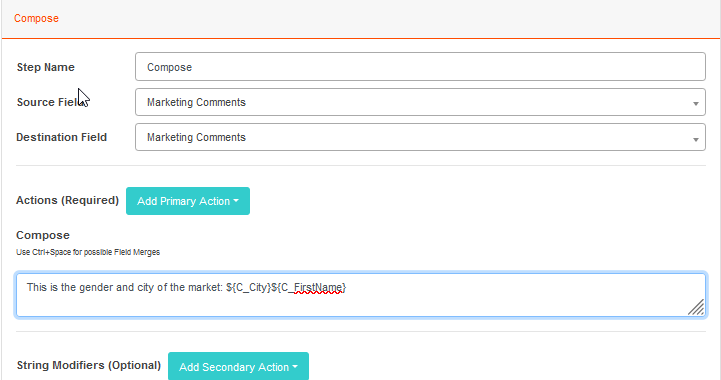
The Compose action allows you to set a value using a combination of characters or field merges to the destination field. To select a field merge, press CTRL+Space and select a field.
The example below writes text to the Marketing Comments field with a combination of two field merges. The final value will be populated in the Marketing Comments field:
Regex Extract
Extracts matching values from the source field and places them into the destination field using regular expression (RegEx). The extracted text is matched based on the first bracketed expression (known as the capturing group). Your expression must contain a capturing group.
For example, to extract a user name from the address johnsmith@email.com:
- Expression:
(\w+)@(\w+).com - Extracted text:
johnsmith
The example above has two capturing groups (one matching before the @ and one
matching after). Only the first capturing group will extract matching values.
For more examples, see the Contact Washing Machine actions page. You can also use regex101.com to test your Regex values.
Regex Replace
Allows you to search and replace contact information using regular expression (RegEx).
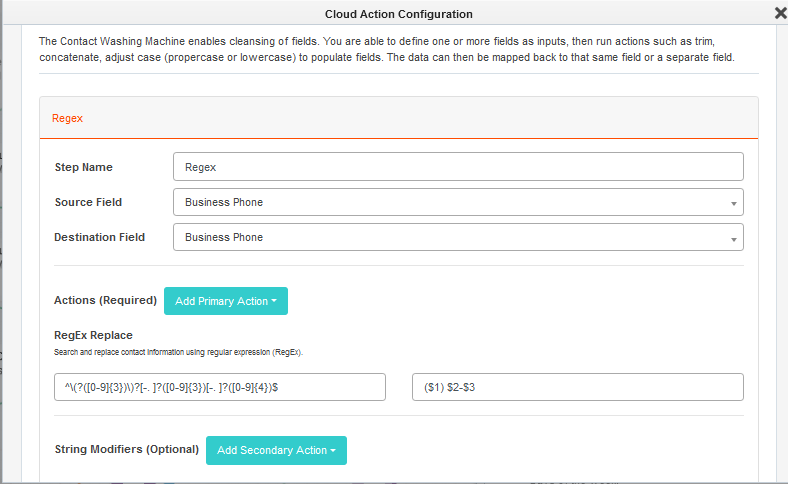
For example, to format a number into a North American phone number format you would do the following:
- Source field:
1234567891 - Regular expression to find:
^\(?([0-9]{3})\)?[-. ]?([0-9]{3})[-. ]?([0-9]{4})$ - Regular expression replace:
($1) $2-$3 - Destination field result:
(123) 456-7891
Within the app it would look like the following:
For more examples, see the Regex Replace section on the Contact Washing Machine actions page.
Math
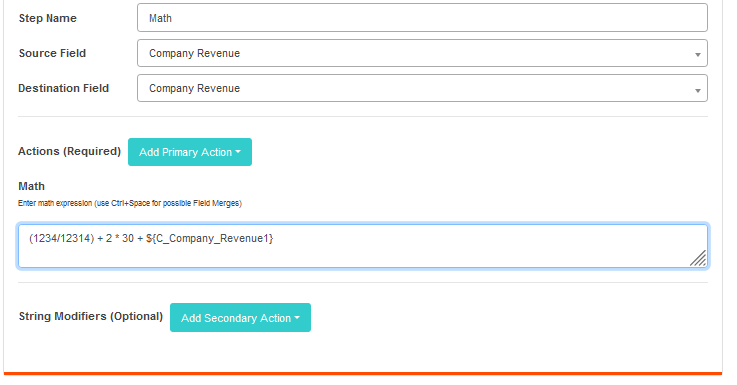
Math allows you to enter a mathematical expression to update your
destination fields. Use simple operators and brackets to create your
expressions: +, -, /, *, ^, (), []. Press Ctrl + Space to view
the list of available source fields.
An example of how it would look within the CloudApp can be found below:
The full list of Math expressions available can be found under the Math section on the Contact Washing Machine actions page (most of the functions listed are supported).
Additional Math Functions
rand(START_RANGE, END_RANGE)— This "math" function will generate a random number from the provided start range and the end range. The end range is optional and, if left blank, it will use2147483647as the maximum value, as that is the maximum value of an integer.rand(0, 10)— Generates a random number from 0–10.rand(1000)— Generates a random number from 1000–2147483647.unique(LENGTH, CHARACTER_SET)— This "math" function will generate a random string of the provided length using the character set defined. The character set is optional and will default toa-zA-Z0-9if left blank. If a character set is defined, it must be enclosed in quotes.unique(10)— Generates a random string usinga-zA-Z0-9that is 10 characters long.unique(20, 'abc123')— Generates a random string usingabc123that is 20 characters long.unique(5, 'a-t123')— Generates a random string using all letters froma-tand123that is 5 characters long.
Replace
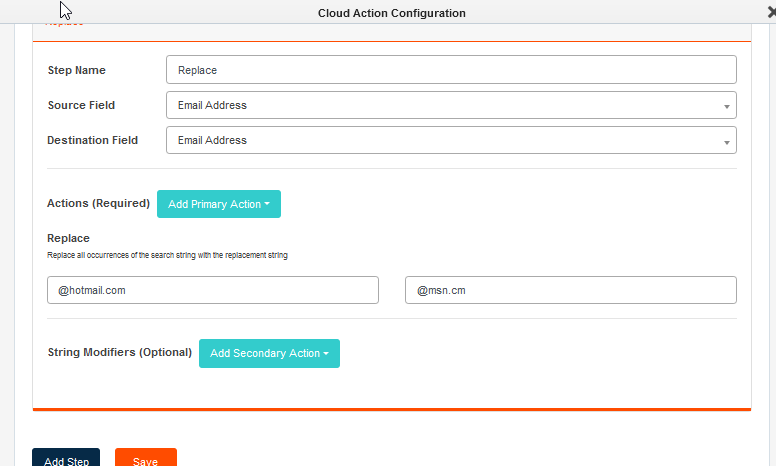
Replace searches for a string of text in your source field and replaces it with the desired text in your destination field. Your search can be case sensitive. The text in the find field cannot be blank.
In the example below, the app will look for instances of hotmail.com within
the field and replace it with msn.com:
Sub-String
This action allows you to specify the location of the beginning and end of a string. The characters that fall into this range will be returned to the destination field. The range begins at the first number and ends at the second number. If you leave the second number blank, it will be treated as "rest of string".
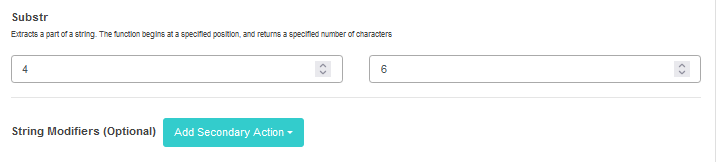
For the example below, if the string is "Yesterday", then "ter" will be written to the destination field.