RampedUp Enrich Data
Overview
The RampedUp Enrich Data cloud apps allow you to add information from RampedUp's database to contact records or CDO records in Eloqua.
Installation
See the Install this card instructions for guidance on how to install our Tegrita Cloud Apps.
Note
You must license access to RampedUp's data and services directly from RampedUp (rampedup.io) prior to installing the app.
Configuring the App
After you've installed the RampedUp Enrich Data cloud app in your Eloqua instance, you'll need to perform some configuration steps. To do this, go to Admin (gear menu) > Platform Extensions > Apps. Click Apps to see a list of apps in your instance. If there are too many apps installed, you can type "RampedUp" in the Search My Apps box at upper left to narrow down to the RampedUp app. Click the RampedUp app entry, then click the small gear icon at upper right to open the app's configuration page. You'll see a screen that looks like this:
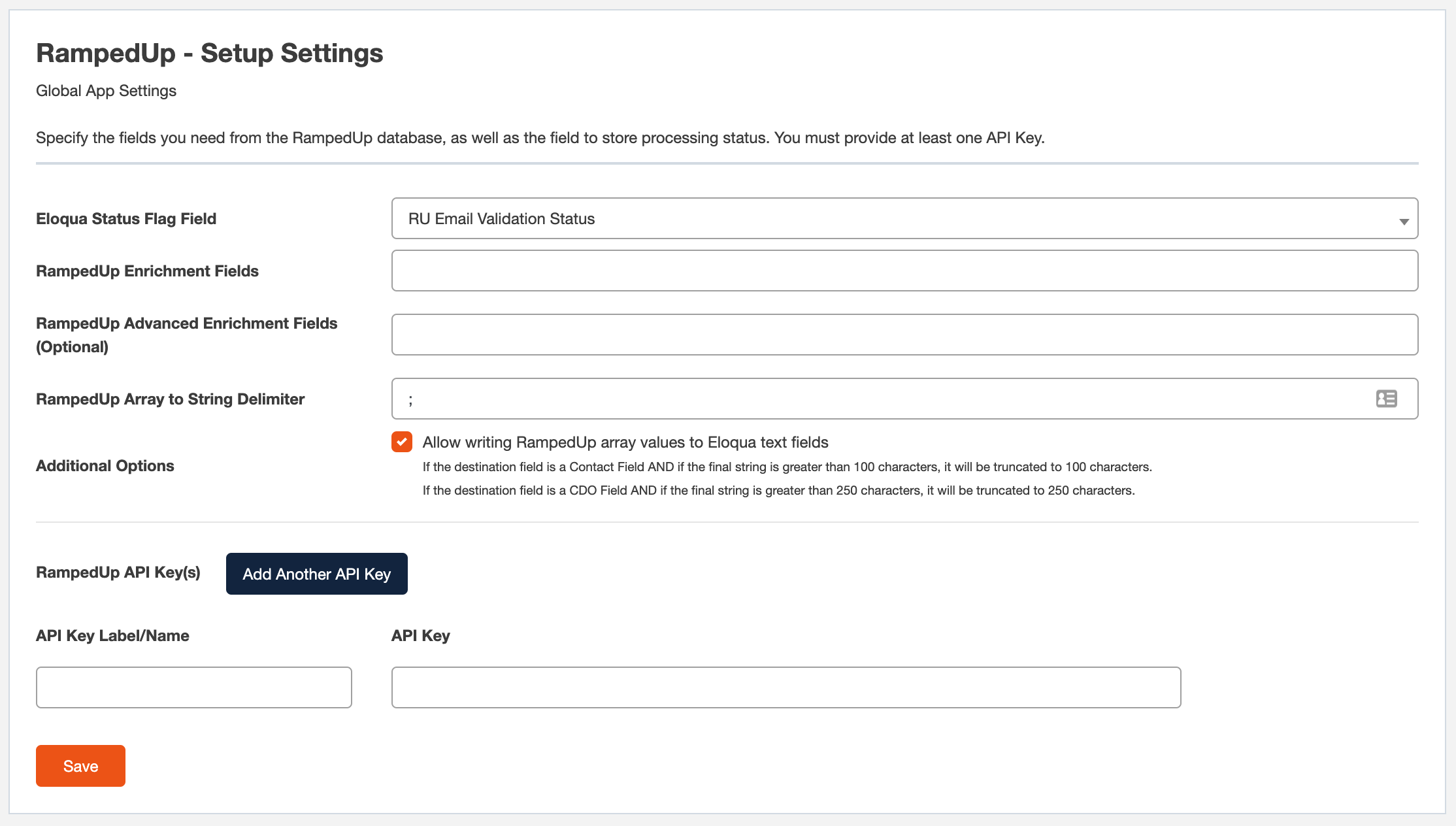
You must configure the following settings before using the cloud app.
API Key
RampedUp will provide the API Key Label/Name and API Key values to you after you've licensed access to their data and services. Enter the key label and the key value here. If you have more than one label/key value pair, click the blue Add Another API Key button to add another entry.
Eloqua Status Flag Field
This field identifies the contact field into which the RampedUp Status Flag will be written.
Enrichment Fields
Click here to choose the enrichment fields that you'd like to make available from the RampedUp database. These fields will be shown as Source Fields in the cloud app. There are two sets of fields, the standard fields and the Advanced fields, configurable separately.
Delimiter
RampedUp supports multi-value fields defined as arrays. Because Eloqua does not support array fields natively, multiple values from a RampedUp array are delivered to Eloqua with separators between the values. The default separator is a semi-colon, but you can choose the separator by entering a new value in this field.
Allow Writing Array Values to Text Fields
This option enables writing multi-value fields using the above separator. Since the values may be long, they will be truncated if they go beyond the Eloqua text field length limits (100 characters for a contact text field, 250 characters for a CDO text field).
Using the RampedUp Enrich Data Cloud App
It is important to understand the data flow between Eloqua and RampedUp. Here are the high-level steps that occur when a contact record or CDO record enters the cloud app:
- The email address you've specified in the step is sent to RampedUp. If the cloud app is running on a campaign canvas or contact program, the email address will be pulled from the field you specified on the contact record. If the cloud app is running on a CDO program canvas, the email address will come from the CDO field that you specified.
- RampedUp looks up the email address in its database and returns a match or no match.
- If there is a match, data from RampedUp is copied to the destination fields you've configured in the cloud app. If there is no match, no data is written to these fields.
- Status is written to the contact field specified in the RampedUp app configuration, or to the CDO field configured in the cloud app. If a match is found, the status value returned is Success. If no match is found, the status is shown as No Match. In rare cases, an Error status may be returned.
Given that overall flow, here are details for setting up the RampedUp Enrich Data cloud app on a campaign canvas or a program canvas.
RampedUp Enrich Contact Data
Add the RampedUp Enrich Contact cloud app to a campaign or program canvas like any other action step:
- Drag it out from the Campaign Steps > Actions toolbar.
- Once you've added it to a canvas, double-click the cloud app icon, then click the pencil icon at upper right in the resulting screen to open the cloud app configuration dialog.
If the cloud app is found on a campaign canvas or a contact program, you'll see a screen that looks like this:
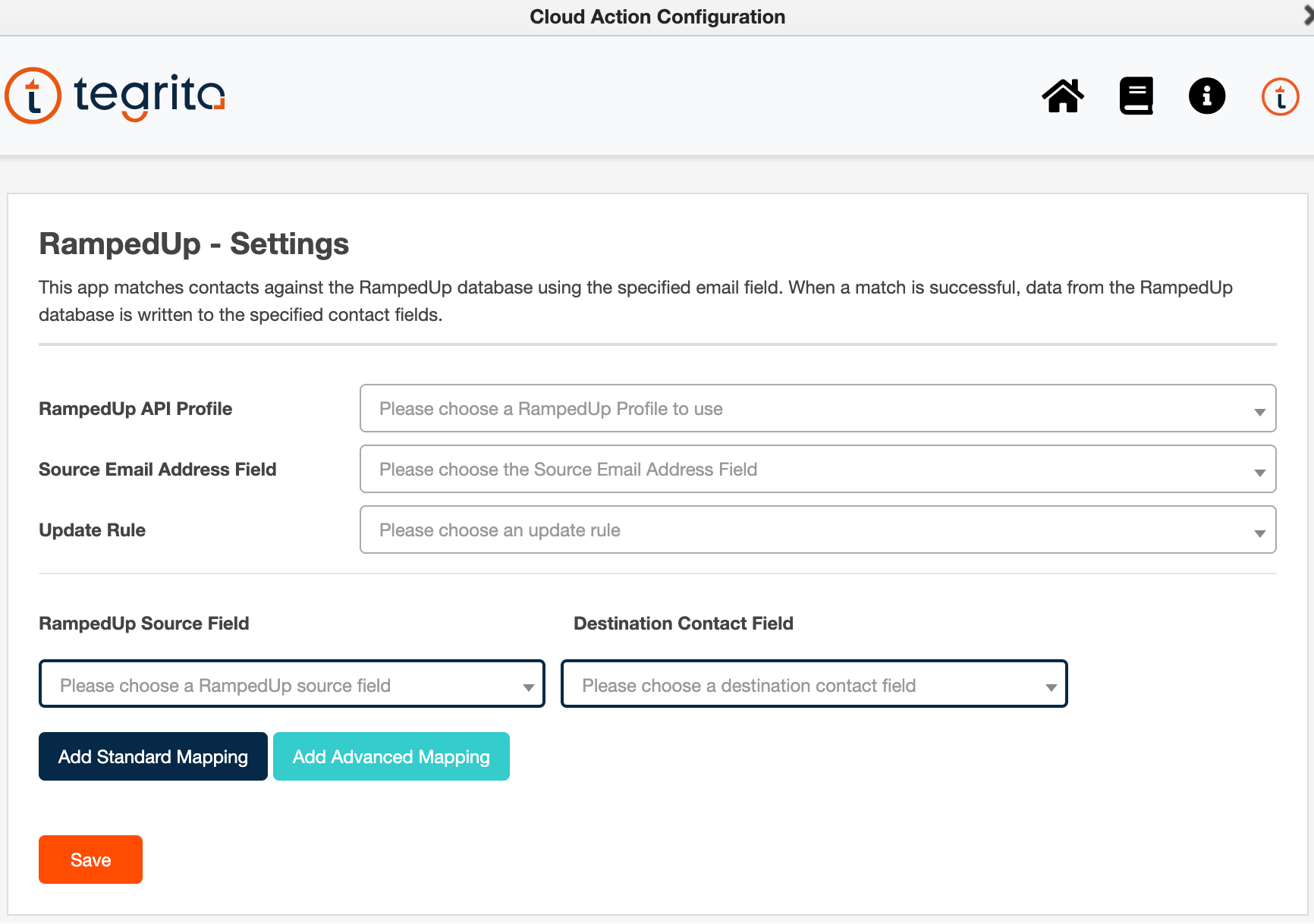
If the cloud app is used on a CDO program canvas, the screen looks like this:
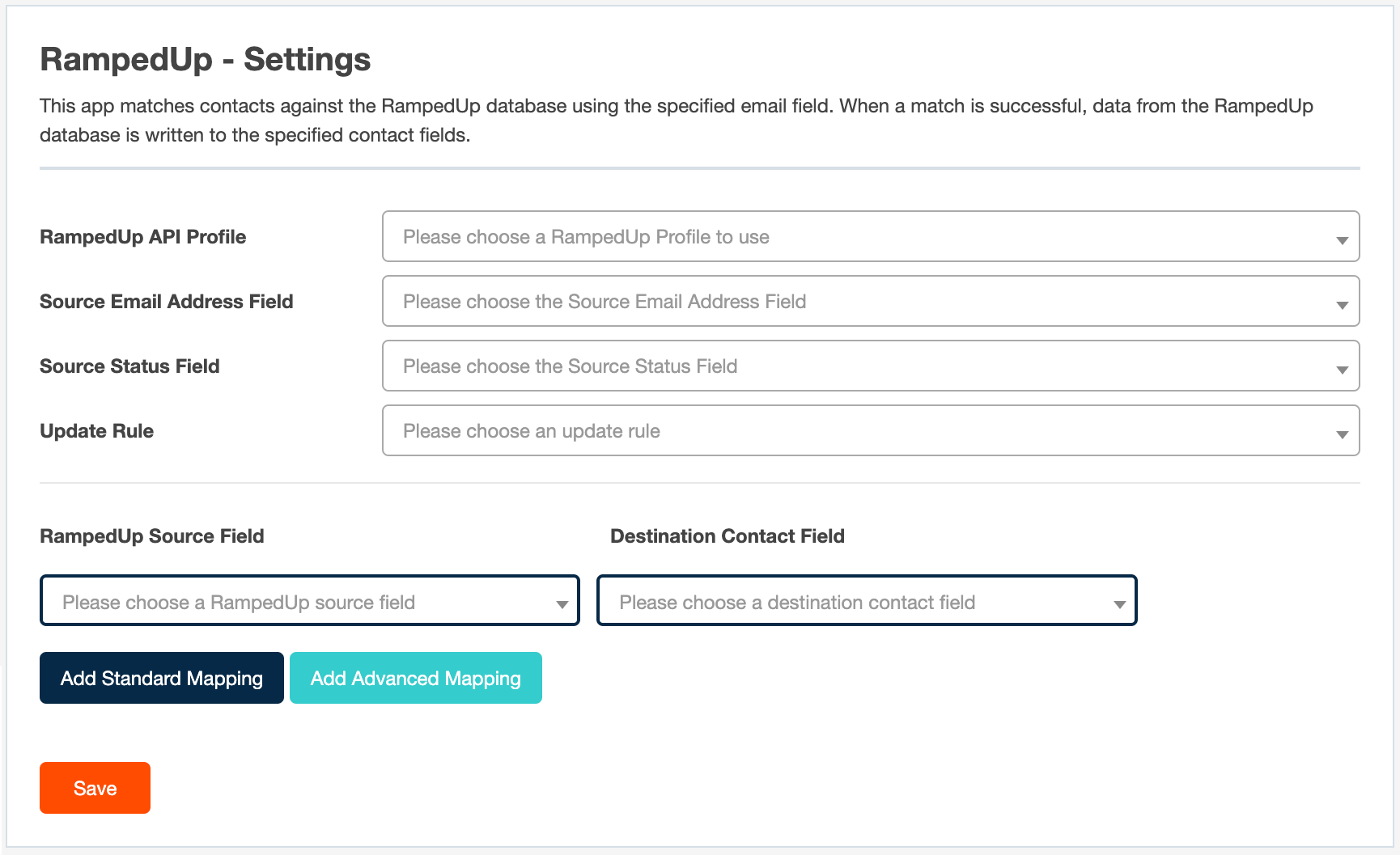
Here's how to configure the cloud app step.
RampedUp API Profile
Choose the API profile you'd like to use. If you've only installed one profile, that will be the only choice offered.
Source Email Address Field
Choose the field that holds the email address you want to send to RampedUp for matching. If the app is running on a campaign canvas or a contact program, the email address field will be found on the contact record; in most cases you'll want to specify the Email Address field. If the app is running from a CDO program, you'll need to specify the field in the CDO record that contains the address.
Write Match Status To
This field will only be shown when running on a CDO program canvas. Use it to specify the field on the input CDO record to which you'd like to write status. If the app is running on a campaign canvas or a contact program, status will be written to the contact field specified in the app configuration under the Admin menu.
Update Rule
You can choose the type of update you'd like:
- Always — Always writes the RampedUp value to the destination field, regardless of whether either field is blank or not. This may allow a null (blank) RampedUp field to overwrite an existing value in the destination field.
- New value is not null — Only writes the RampedUp value to the destination field if the RampedUp field is not null, i.e. only if it has a value and is not blank.
- Existing value is null — Only writes the RampedUp value to the destination field when the latter is null (blank).
- Default Eloqua field rule — Uses the Default Update Logic from the Eloqua field configuration.
Add Standard Mapping or Add Advanced Mapping
Click one of these two buttons to choose the RampedUp fields that you'd like to pull data from when there is a match, and the contact fields you'd like to write the values to. The RampedUp fields shown as source fields will be the ones selected in the app configuration. You can add as many mappings as you'd like.
Delete
Once a mapping has been added, you can delete it by clicking the Delete button next to it.
Save
Once you've configured the mappings the way you'd like, click Save to save the setting. Then click the X at upper left to close the cloud app window.
RampedUp Enrich CDO Data
Add the RampedUp Enrich CDO cloud app to a CDO program canvas like any other action step:
- Drag it out from the Campaign Steps > Actions toolbar.
- Once you've added it to a canvas, double-click the cloud app icon, then click the pencil icon at upper right to open the cloud app configuration dialog.
An initial dialog will ask you which CDO you want to write RampedUp data to:
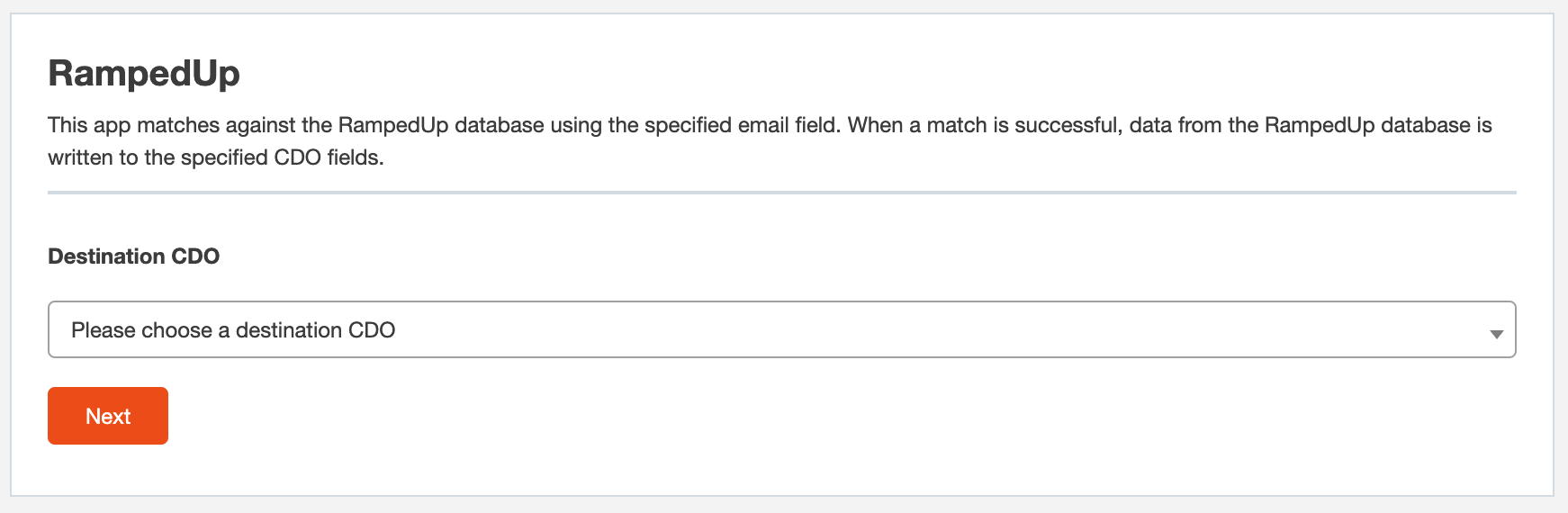
Warning
Once you've specified the destination CDO, you cannot change it. If you need to write to a different CDO, you'll need to delete the cloud app step and add it again.
If the cloud app is found on a campaign canvas or a contact program, you'll see a screen that looks like this:
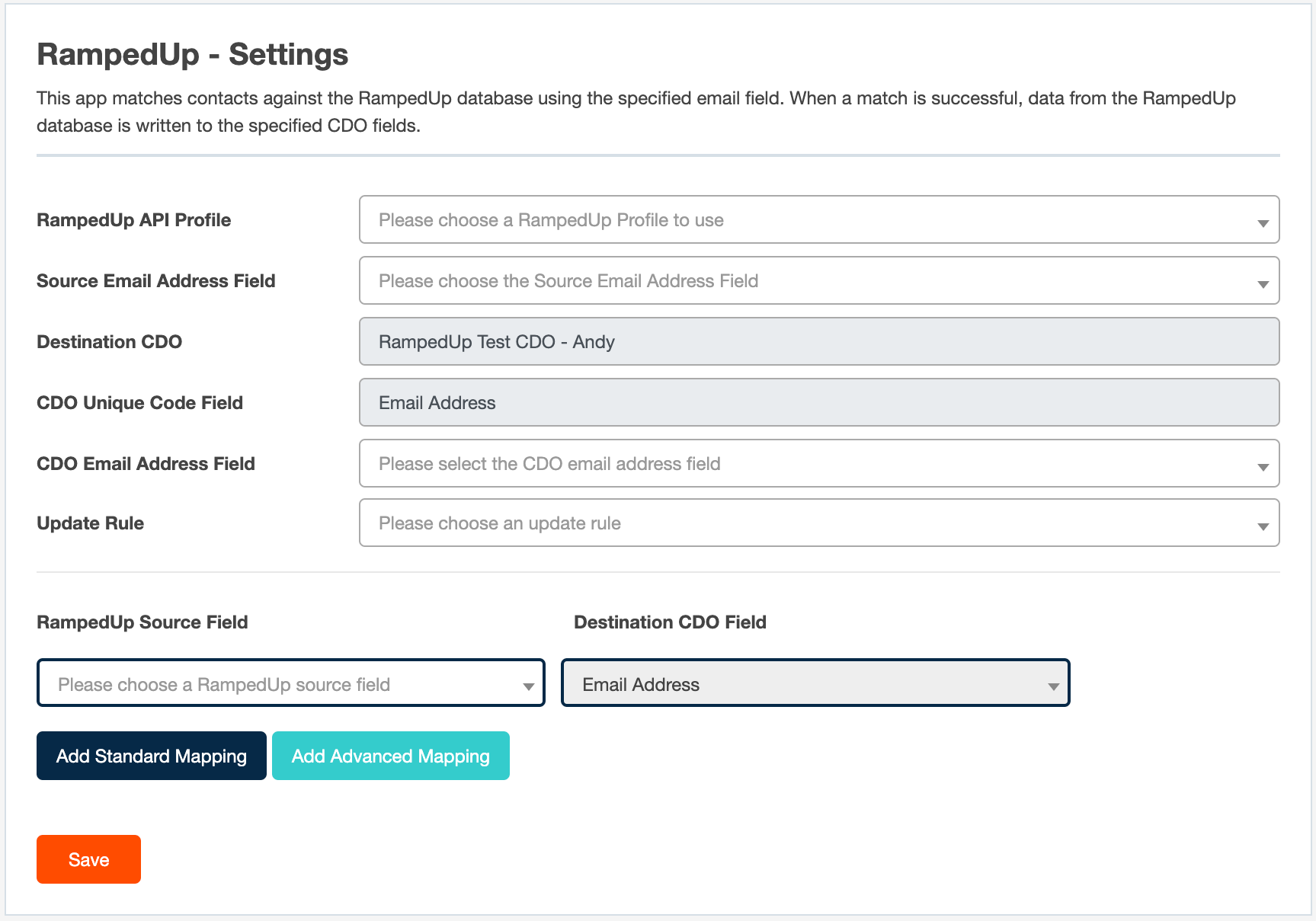
If the cloud app is running on a CDO program canvas, the screen will look like this:
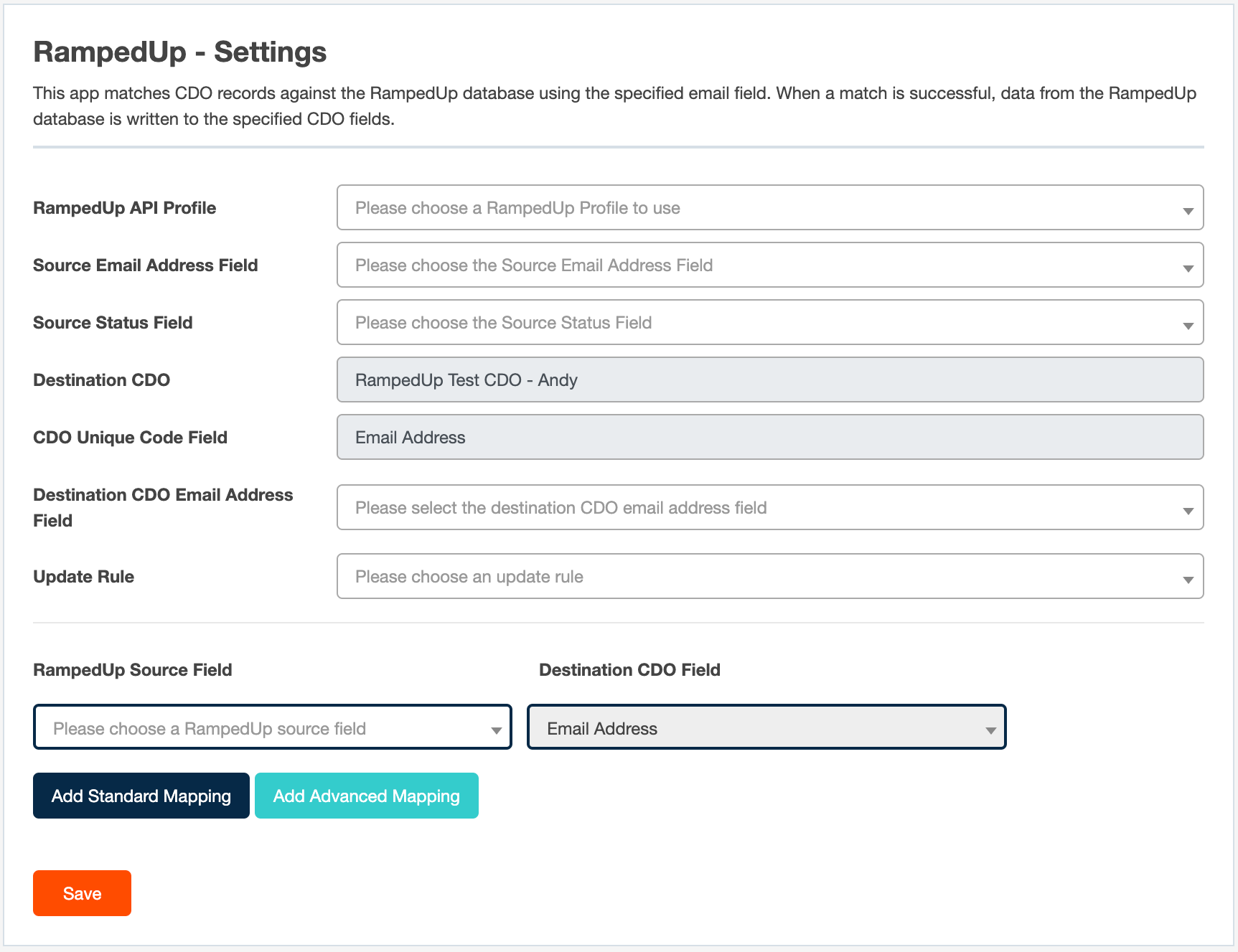
Here's how to configure the cloud app step.
RampedUp API Profile
As above, choose the API profile you'd like to use.
Source Email Address Field
Choose the field that holds the email address you'd like to send to RampedUp for matching.
Source Status Field
This field will only be shown when running on a CDO program canvas. Use it to specify the field on the input CDO record to which you'd like to write status. If the app is running on a campaign canvas or a contact program, status will be written to the contact field specified in the app configuration under the Admin menu.
Destination CDO and Unique Key
These are display-only fields; you can't modify them. The Unique Key field is only shown if the destination CDO has a unique key field specified.
CDO Email Address Field
Specify the CDO email address field and, if applicable, the destination CDO email address field.
Update Rule
You can choose the type of update you'd like:
- Always — Always writes the RampedUp value to the destination field, regardless of whether either field is blank or not. This may allow a null (blank) RampedUp field to overwrite an existing value in the destination field.
- New value is not null — Only writes the RampedUp value to the destination field if the RampedUp field is not null, i.e. only if it has a value and is not blank.
- Existing value is null — Only writes the RampedUp value to the destination field when the latter is null (blank).
Add Standard Mapping or Add Advanced Mapping
Click one of these two buttons to choose the RampedUp fields that you'd like to pull data from when there is a match, and the CDO fields you'd like to write the values to. The RampedUp fields shown as source fields will be the ones selected in the app configuration. You can add as many mappings as you'd like.
Delete
Once a mapping has been added, you can delete it by clicking the Delete button next to it.
Save
Once you've configured the mappings the way you'd like, click Save to save the setting. Then click the X at upper left to close the cloud app window.