Tatango SMS/MMS
Overview
The Tatango SMS/MMS CloudApp allows campaigns to send an SMS/MMS to the contact using the Tatango API. You are able to define the Tatango List, Send Type, Eloqua Phone # field, and SMS/MMS message to be used as part of the payload to the Tatango API.
Installation
See the Install this card instructions for guidance on how to install our Tegrita Cloud Apps.
CloudApp Global Configurations
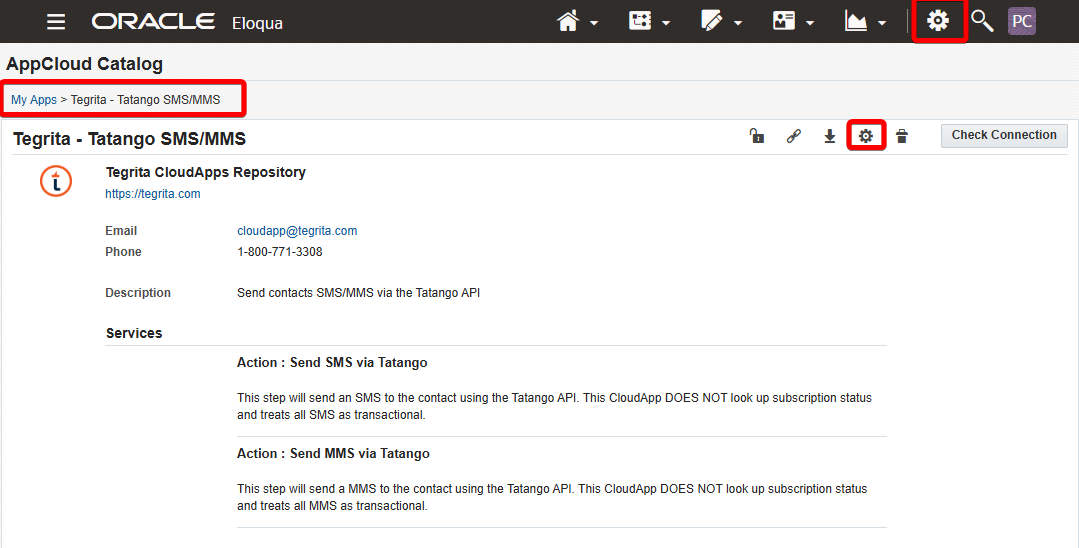
The CloudApp has a few mandatory global settings that need to be configured prior to the use of the CloudApp. Global Configuration can be accessed by going to Settings > My Apps > Tegrita - Tatango SMS/MMS, then clicking on the gear icon to access the modal to configure the CloudApp:
See the screenshot below for all the available globally configured options:
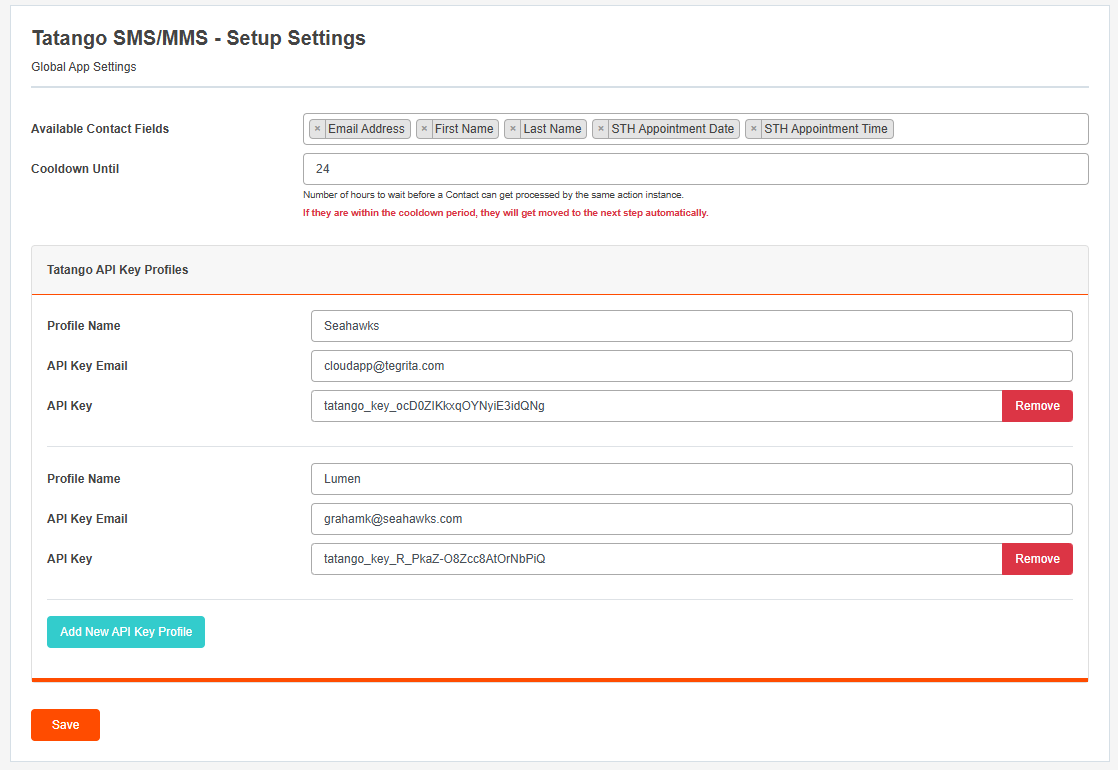
Definitions of Each Field
- Available Contact Fields — These are the contact fields that can be used as variables as part of the SMS/MMS message.
Note
The variables can only be used if the Tatango Send Type is set to Single; it will not work when the Send Type is Multiple.
- Cooldown Until — This is the number of hours to wait before a contact can get processed by the same action instance. This is to prevent sending multiple SMS to a contact if they are re-tried due to an error on Tatango's API. See the Cooldown Until Logic section below for an explanation of the logic.
Note
If a contact is within the cooldown period, they will get moved to the next step automatically.
- Tatango API Key Profiles — This section is used to configure API Keys that the CloudApp will use to call the Tatango API. You are able to set up as many API Key Profiles as needed.
Locating the Tatango CloudApp
Add the CloudApp to a campaign canvas like any other action step:
- Drag it out from the Program Steps > Actions toolbar on the left side of the campaign canvas screen.
- Once you've added it to a canvas, double-click the CloudApp icon, then click the pencil icon in the resulting screen to open the CloudApp configuration dialog.
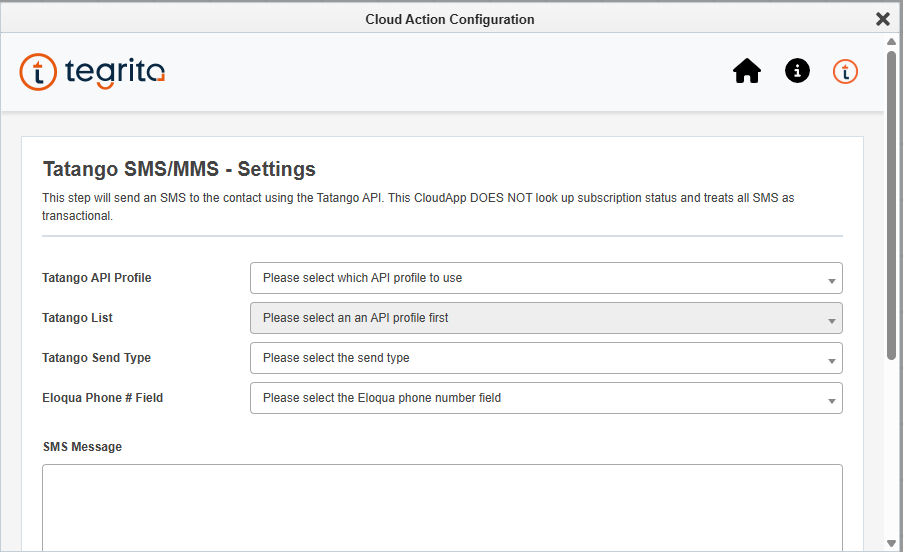
You'll see a screen that looks like this:
Using the Tatango (SMS) CloudApp
The Tatango CloudApp allows you to configure the Tatango List, Send Type, Eloqua Phone # field, and SMS/MMS message. With the configuration settings open on the canvas, make the following selections to configure the app:
- Select the Tatango API Profile.
- Select the Tatango List.
- Select the Tatango Send Type.
- Select the Eloqua Phone # field.
- SMS Message — Note that there is a maximum of 160 characters for SMS; for longer messages, please consider using the MMS action step, which has a character limit of 5,000.
- Once you have configured your steps, click Save to commit the changes.
In the SMS Message, you are able to use the list of available variables that was
defined in Global Configurations. The variables will be replaced with data from
Eloqua. For example, if {{ C_FirstName }} is used as part of the message, the
record's First Name will be used as the value when sending the SMS.
Using the Tatango (MMS) CloudApp
The MMS variation of the CloudApp is configured the same way as the SMS version. The only difference is that you can define a Tatango Attachment ID to send as part of the MMS to be used as the media. The character limit is also increased from 160 to 5,000 characters:
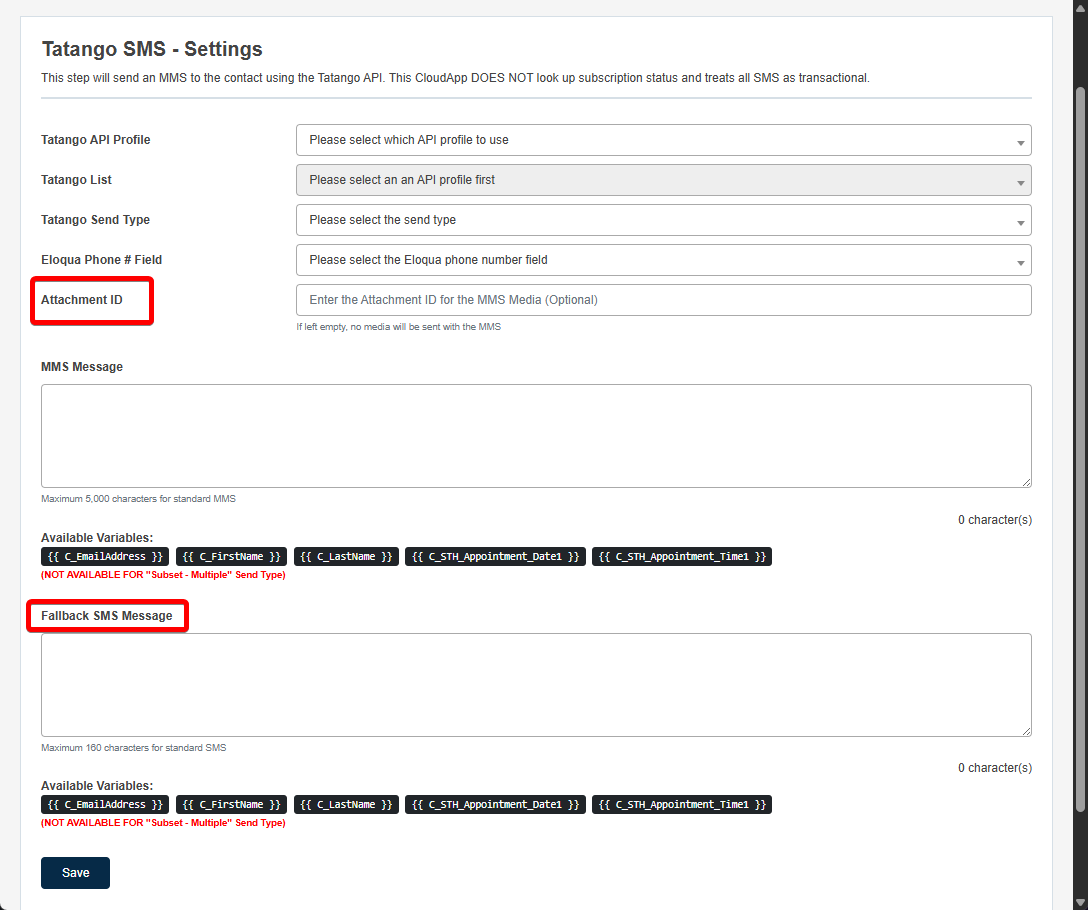
You will also need to configure a fallback SMS message in case the carrier does not support MMS messages.
Cooldown Until Logic
The Cooldown Until logic was introduced to prevent sending an SMS/MMS more than once within the defined period to the same contact for the same action step. This restriction is applied at the Action Instance level, and not at the Contact level or the Campaign level.
For example, if there are two or more "Send SMS via Tatango" steps on the same campaign, each of the steps will have its own Cooldown timer; they work independently from each other.
Example Scenarios
- Scenario 1 — Contact enters the 1st step, gets sent an SMS/MMS, then re-enters the same step within the "Cooldown Until" period. Outcome 1: They will not get sent the SMS/MMS but will get moved to the next step.
- Scenario 2 — Contact enters the 1st step, gets sent an SMS/MMS, then re-enters the same step after the "Cooldown Until" period. Outcome 2: They will get sent the SMS/MMS and will get moved to the next step.
- Scenario 3 — Contact enters the 1st step, gets sent an SMS/MMS, then enters a 2nd step they have never entered before. Outcome 3: They will get sent the SMS/MMS and will get moved to the next step.
Phone Number Verification Logic
Phone number verification logic was introduced to prevent blank or invalid phone numbers from being used with the Tatango API.
- Any non-numeric character is removed from the contact's phone number before
processing. For example, the phone number
(555)888-4444will be processed as5558884444when interacting with the Tatango API. - Any contacts with a phone number that is not 10 or 11 characters in length after having their non-numeric characters removed will error out in the cloud app step. You will see a "Phone number is not between 10-11 characters." error message in the CloudApp step logs, and the contact will have their status set to "Error" in the CloudApp step.
- Blank phone numbers will also fail with the same error message as above since they are not of a valid length.