Paste From List Cloud App
Overview
The Paste From List cloud app is an action step that can be used on Eloqua campaign or program canvases. It fills in a contact field using values from a list configured in the app. You can control the way in which list values are used:
- List values can be entered directly into the cloud app, or can be pulled from a picklist.
- Values can be assigned in the order they are entered or randomly.
- Values can be set for multi-use or single use.
A common use case for the Paste From List app would be to assign unique promo code values to individual contacts as they enter the action step.
Installation
See the Install this card instructions for guidance on how to install our Tegrita Cloud Apps.
Using the Paste From List Cloud App
Add the Paste From List cloud app to a campaign or program canvas like any other action step:
- Drag it out from the Campaign Steps > Actions toolbar on the left side of the campaign or program canvas screen.
- Drag the action step onto the canvas.
- Double-click the cloud app icon, then click the pencil icon in the resulting screen to open the cloud app configuration dialog.
You'll see a screen that looks like this:
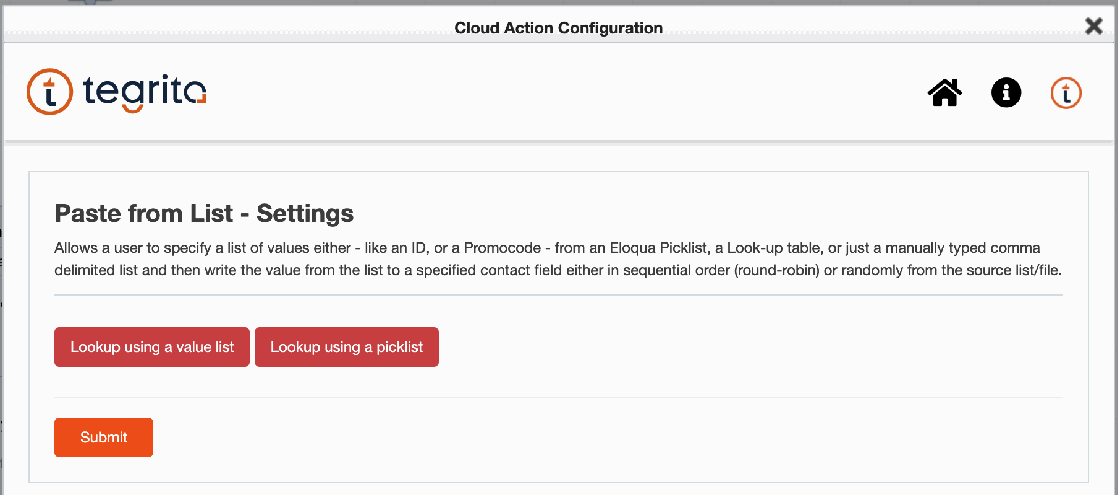
The two main options, Lookup using a value list and Lookup using a picklist, are described in more detail below.
Lookup Options
Lookup using a value list
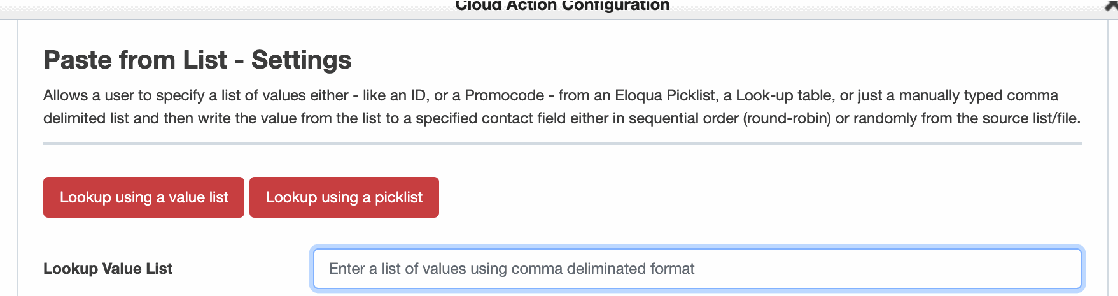
This option lets you define the list of values by entering them in the Paste From List dialog box. When you click this option, a text box is displayed allowing you to enter the values as a comma-delimited list:
Lookup using a picklist
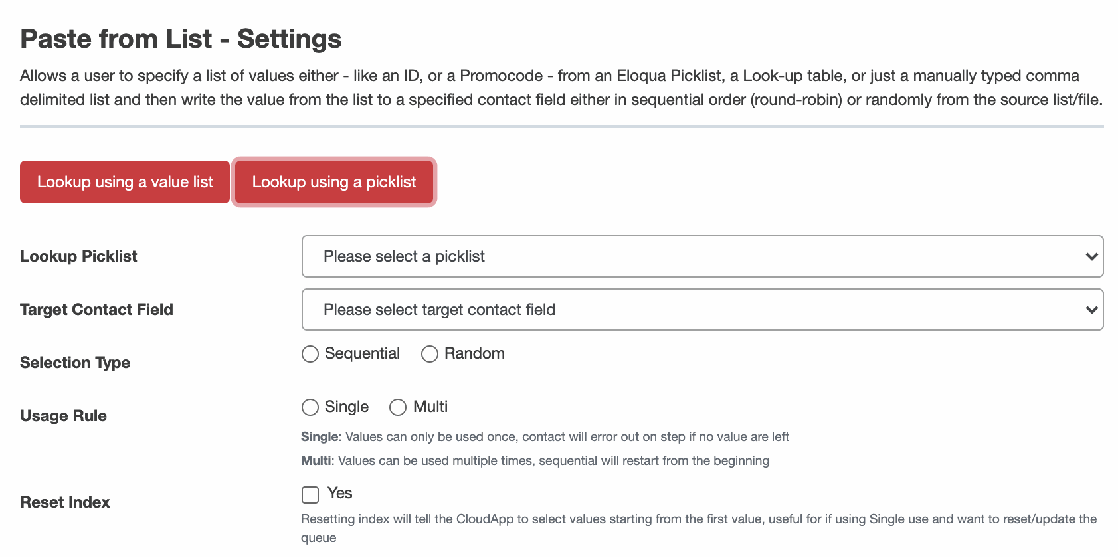
This option lets you select a picklist as the source for values. When you choose a picklist, the Option Value field is used as the value source.
Additional Configuration Options
The additional options are described below.
Target Contact Field
This lets you select the field to which the value will be written by the cloud app.
Selection Type
The options are Sequential or Random:
- Sequential — Assigns the values in the order in which they are found in the comma-delimited list or the picklist.
- Random — Assigns values in a random order, keeping track of which values have been used and which have not yet been used. Values are not re-used unless the Usage Rule is set to Multi.
Usage Rule
This option determines what happens once the values in the list have all been used:
- Single — If Single usage is selected, contacts that enter the action step after all the values in the value list or picklist have been used will error out. The Routing tab on the action step determines where the contacts that have errored out will go.
- Multi — If Multi usage is selected, values will be re-used once all values in the list have been assigned. If the Selection Type is Sequential, assignment will start with the first value in the value list or picklist. If the Selection Type is Random, the next value will be randomly selected from the full list of values.
Reset Index
This option resets the value list:
- If the Selection Type is Sequential, values will be assigned starting with the first value in the value list or picklist.
- If the Selection Type is Random, the next value assigned will be randomly selected from the full set of values, regardless of which values have previously been used.
Once you've configured the options you like, click the Submit button to save them.