Record Feeder
Overview
The Record Feeder is an app that runs on CDO program canvases. It lets you set criteria to determine which CDO records will be added to the program. You can also set a schedule for when the feeder runs.
Installation
See the Install this card instructions for guidance on how to install our Tegrita Cloud Apps.
Using the Record Feeder Cloud App
Add the Record Feeder Cloud App to a campaign or program canvas like any other data source:
- Drag it out from the Campaign Steps > Data Sources toolbar on the left side of the campaign or program canvas screen.
- Drag the feeder onto a canvas, then double-click the cloud app icon and click the pencil icon in the resulting screen to open the configuration dialog.
You'll see a screen that looks like this:
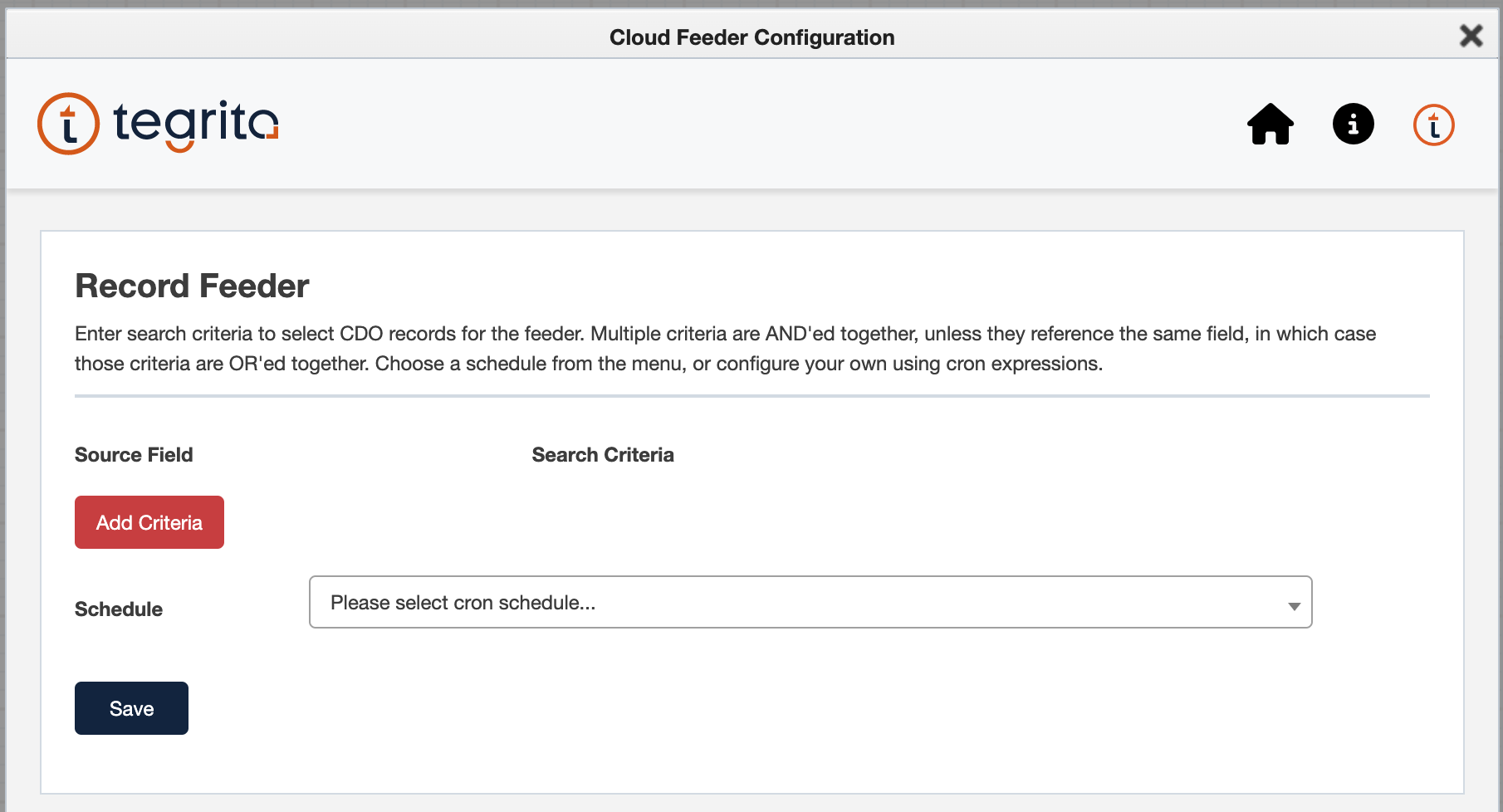
The Record Feeder app lets you specify two things:
- Source Field — This is where you specify the criteria to use when selecting records to add to the program.
- Schedule — This section lets you configure when and how often records are added to the program.
Source Field
Choose the field that you want to use in the Select CDO Record Field menu at left, then choose an operator and enter a value to use in the Search Criteria area at right:

Add additional criteria by clicking the Add More Criteria button. When multiple criteria are configured, they are AND'ed together; that is, all criteria must be satisfied for a record to be selected. For text fields, "greater than" and "less than" are interpreted using an alphabetic sort order; that is, a field value that would come earlier in the sort than the specified value is considered "less than" that value.
If you need to pull in all the records for a CDO, set up a criterion that will be true for all records, e.g. Email Address not equal to "Blank or empty."
Using the "LIKE" Search Criteria
You can use the LIKE search criteria to help identify specific records in the CDO. The LIKE operator works similarly to the LIKE operator used in SQL queries, as described here.
For example, you can use the string %home% to find any property names that
have "home" in them:
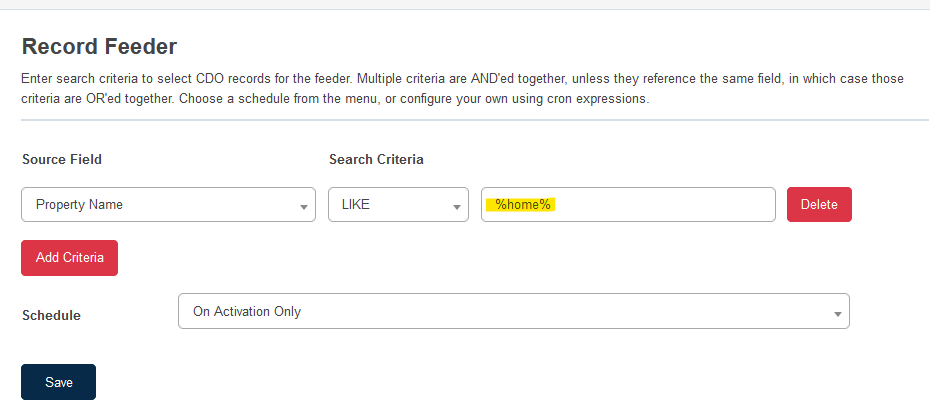
The table below gives examples and provides a description of the results. See more details here.
| Example | Description |
|---|---|
LIKE 'a%' |
Finds any values that start with "a" |
LIKE '%a' |
Finds any values that end with "a" |
LIKE '%or%' |
Finds any values that have "or" in any position |
LIKE '_r%' |
Finds any values that have "r" in the second position |
LIKE 'a_%' |
Finds any values that start with "a" and are at least 2 characters in length |
LIKE 'a__%' |
Finds any values that start with "a" and are at least 3 characters in length |
LIKE 'a%o' |
Finds any values that start with "a" and end with "o" |
Schedule
Choose a schedule from the menu. You can specify that the feeder run once on activation, or at specified intervals:
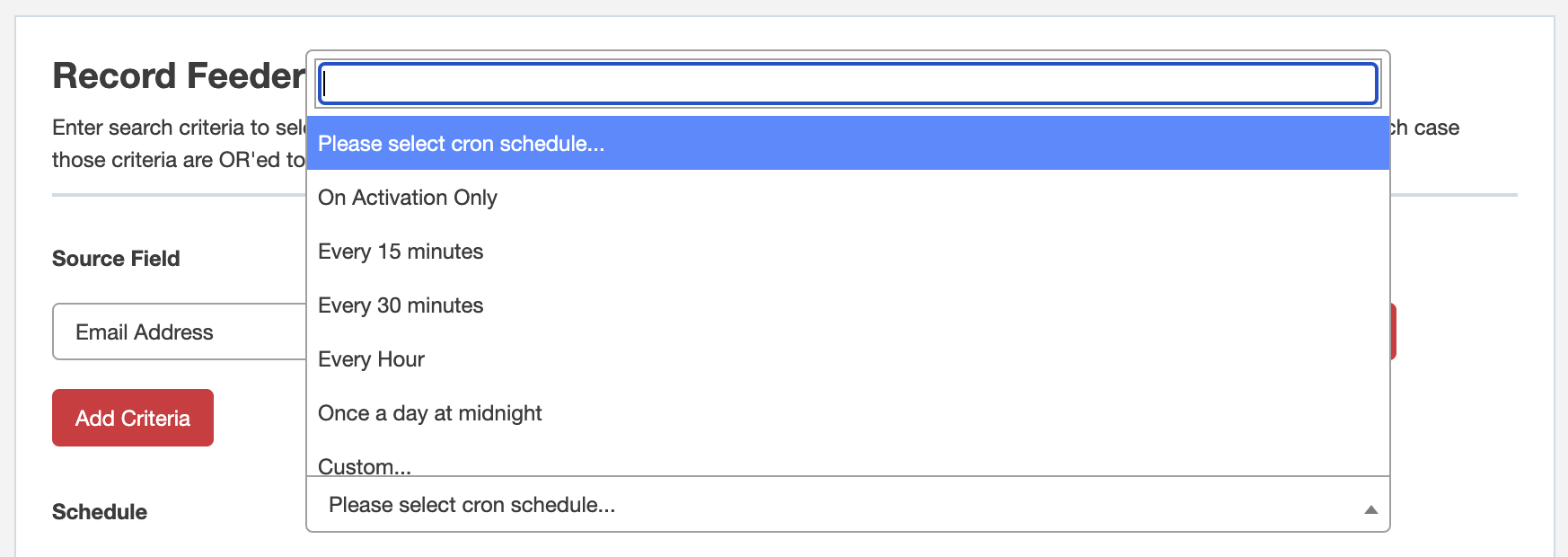
Choose Custom... to define an interval not shown in the menu. Custom schedules are defined using cron schedule expressions. This website explains cron expressions and lets you test an expression to see when the next run would be. When you enter a cron expression, the next run time is shown below the custom schedule.