Compare Date - Advanced
Overview
The Compare Date - Advanced cloud app is a decision step that provides date comparison operations that are not available in the built-in Compare Date decision step:
- Day of week: You can check to see if a date is a particular day of the week.
- Month and day: You can check to see if a date matches a specified date, regardless of the year — e.g. to drive a holiday campaign that runs once a year.
- Specific day every year: You can check the same day every single year.
- "First Wednesday of the month" comparisons: You can check for a particular day of the week within a month, e.g. the first Wednesday of the month, or the last Friday, or the second Tuesday, etc.
- Specific date: Finally, you can enter a specific date (month, day, and year).
- Weekends or weekdays: You can check if the day is on a weekday or weekend.
- Time range: You can specify a time range to check over a 24 hour period and the time zone.
Contacts flow into the step and go down the Yes path if the current date meets the criteria, and down the No path if it does not. The cloud app can be paired with a wait step to create a "gate" that sends contacts down the Yes path on a desired date or dates.
Installation
See the Install this card instructions for guidance on how to install our Tegrita Cloud Apps.
Alternatively, your Tegrita contact can make sure the app is installed in your Eloqua instance.
Configuring the Advanced Date Compare Cloud App
Configure the Compare Date - Advanced cloud app by entering text into the Relative Date Criteria field:
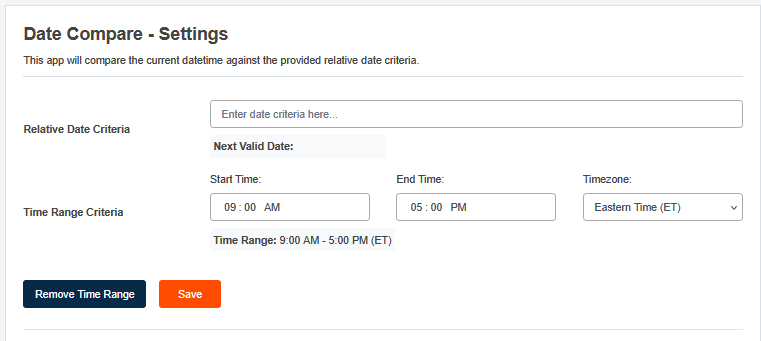
Criteria for dates can follow one of the formats noted below.
Day of Week
Enter the name of the desired day of the week ("Monday", "Tuesday", etc.). The decision step sends contacts down the Yes path on days that match the specified day of the week. On other days, contacts go down the No path.
Month and Day
Enter the month and date, e.g. "September 23" or "July 1" in the Relative Date Criteria field. Contacts that enter the decision step on that month and day are sent down the Yes path. Contacts that enter on other days will go down the No path.
Particular Day of the Week within a Month
To choose a particular day of the week relative to the month, enter your request as follows:
- Start with the ordinal, i.e. "first", "second", "third", "fourth", or "last".
- Then enter the day of the week, i.e. "Monday", "Tuesday", "Wednesday", etc.
- Then enter "of the month" or "of this month" (these produce the same result).
Valid examples of this type of criteria are phrases like "second Monday of the month", "last Friday of the month", or "first Wednesday of the month."
Weekends or Weekdays
Enter "weekends" or "weekdays" to check if a day is during the week or on the weekend.
Time Range
Click the Time Range button to add a time range to validate. The start time has to be before the end time. Click Remove Time Range to clear the time range settings if you just want the day to be checked.
Testing Your Criteria
Once you've entered the criteria and clicked Save, the app shows you the next date that meets the criteria in the Next Valid Date field just below the criteria. To test a particular date to see if it matches the criteria, choose the date in the Test a Date field and then click Test. The app displays True or False in the Eval Result field just to the right of the Test button. The test only checks if the date entered is valid and does not check the time set in the time range.
Using the Cloud App on a Campaign or Program Canvas
This cloud app is very useful for ongoing triggered campaigns or programs where contacts may flow into the cloud app decision step on any day. You can set up the cloud app to act as a "gate" that only allows contacts through on the specified dates by pairing it with a one-day wait step.
For example, say you have an email that you'd like to send every month on the third Wednesday of the month. Start by entering "third Wednesday of the month" in the Relative Date Criteria field, click Save, and exit the cloud app. Connect the Yes path to the email step that you'd like to go out the third Wednesday of the month. Connect the No path to a one-day wait step that cycles back into the cloud app, as seen in the example below:
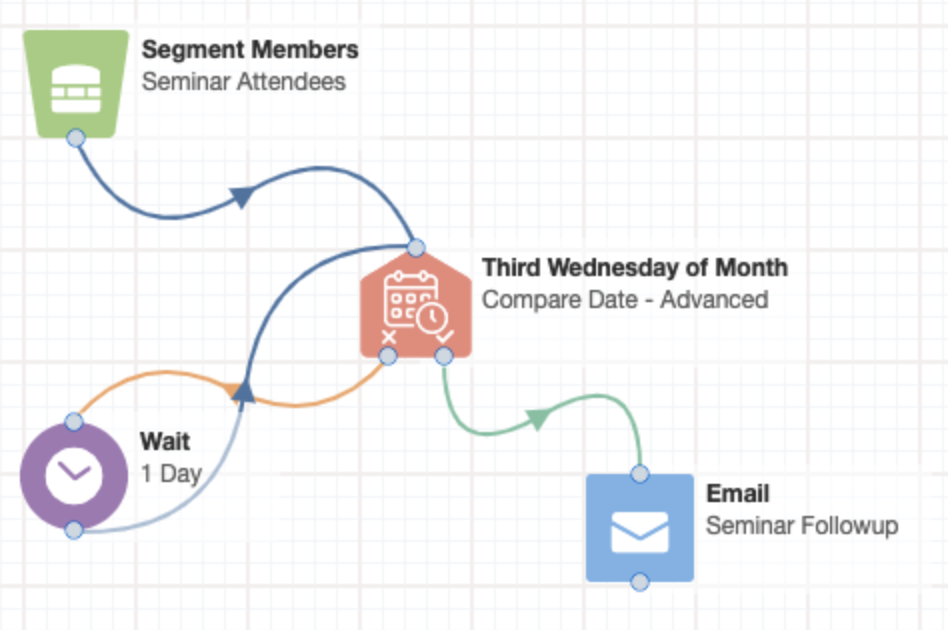
The result will be to send contacts to the email step on the third Wednesday of every month. On other days, the contacts will accumulate in the wait step connected to the cloud app. If the campaign is a multi-email campaign, with all emails set to go out on the third Wednesday, be sure to put a 1-day wait step between emails so that the contact does not flow through all the emails on the same day.