CDO to External Activities
Overview
The CDO to External Activities cloud app creates an external activity for a contact based on Custom Data Object (CDO) data. Data stored in the CDO record is used to create the External Activity and link it to the appropriate contact.
Installation
See the Install this card instructions for guidance on how to install our Tegrita Cloud Apps.
Configuring the CDO to External Activities Cloud App
Add the CDO to External Activities cloud app to a CDO program canvas like any other action step:
- Drag it out from the Campaign Steps > Decisions toolbar on the left side of the program canvas screen.
- Drag the action step onto the canvas.
- Double-click the cloud app icon, then click the pencil icon in the resulting screen to open the cloud app configuration dialog.
You'll see a screen that looks like this:
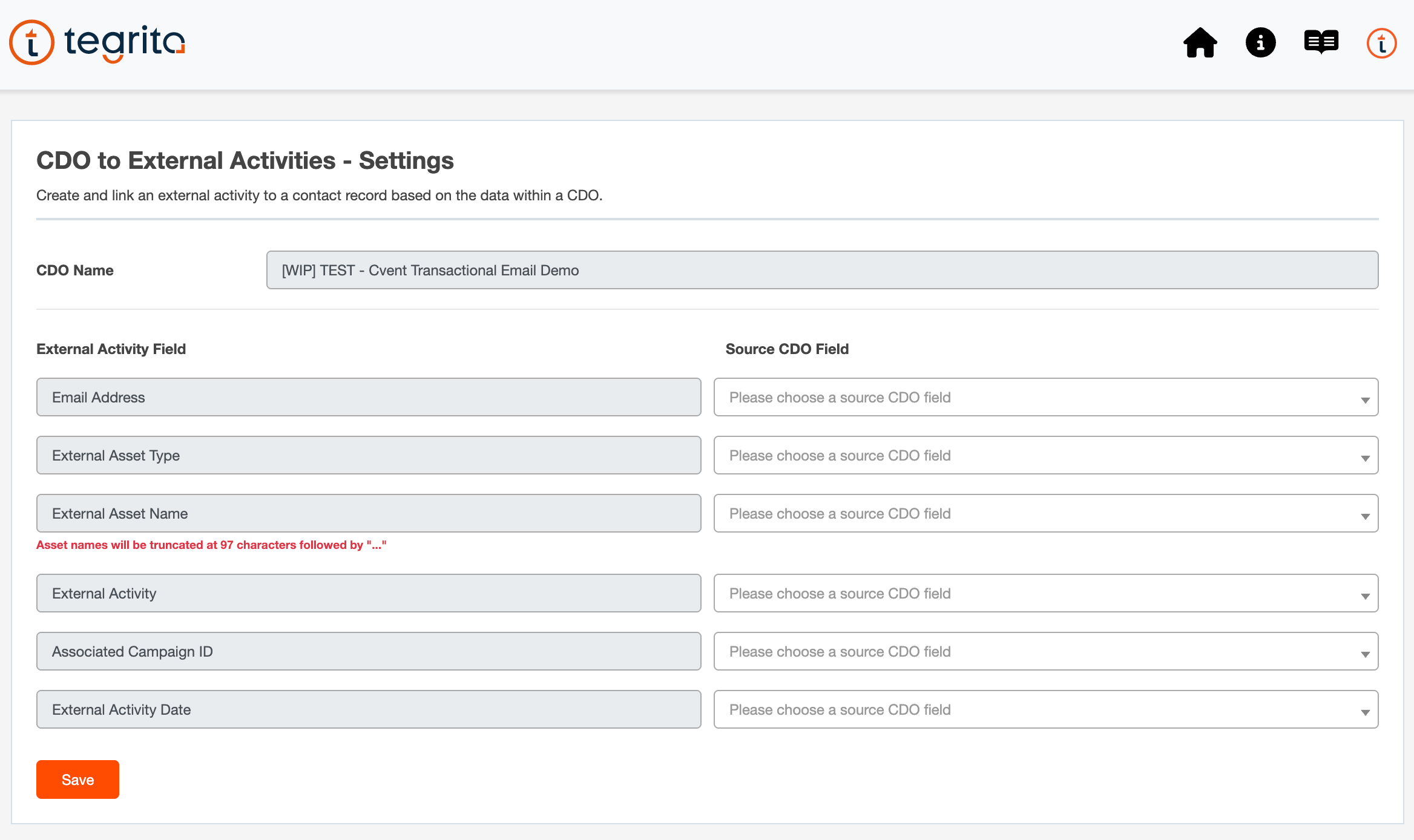
CDO Field Mapping
Choose the CDO fields (on the left) that will be used to configure the External Activity:
| CDO Field | Description |
|---|---|
| External Asset Type | The top-level classification for something that your contacts are performing — for example, a Tradeshow. External Asset Types are configured by going to Setup > Database Setup > External Activities. |
| External Asset Name | The first sub-category for the asset type. For example, if the asset type is a Tradeshow, the asset name could be the name of the tradeshow. External Asset Names are also configured by going to Setup > Database Setup > External Activities. |
| External Activity | The specific activity that the contact or prospect performed for this specific external asset. For example, if it is a tradeshow event, activities could include Registered, Canceled, Completed, and so on. |
| Campaign ID | The ID of the campaign in Oracle Eloqua. This is reflected in the URL for each campaign. For example, https://secure.p01.eloqua.com/Main.aspx#campaigns&id=XXX, where XXX is the campaign ID. |
| Date | The date of the activity that is being captured. |
| The email address of the contact or prospect performing this activity. |
Saving Your Configuration
Once you've configured the CDO fields used to create the External Activity, click the Submit button to save your settings.