Frequency Throttler
Overview
The Frequency Throttler cloud app allows a user to set global and individual send email limits for emails. Usage of the cloud app helps prevent contacts from being emailed too frequently, cutting down on unsubscribes and spam complaints.
The Frequency Throttler is placed before email steps in campaign workflows. When contacts enter the throttler app step, they are evaluated to see if they have reached any of the limits set in the global settings of the app. Contacts are held in the step until their limit thresholds are no longer being met.
Installation
See the Install this card instructions for guidance on how to install our Tegrita Cloud Apps.
Global Settings Overview
You can access the global settings by going to My Apps in Eloqua, selecting the Tegrita - Frequency Throttler cloud app, and clicking the Gear icon in the top right. You will be presented with the following configuration options:
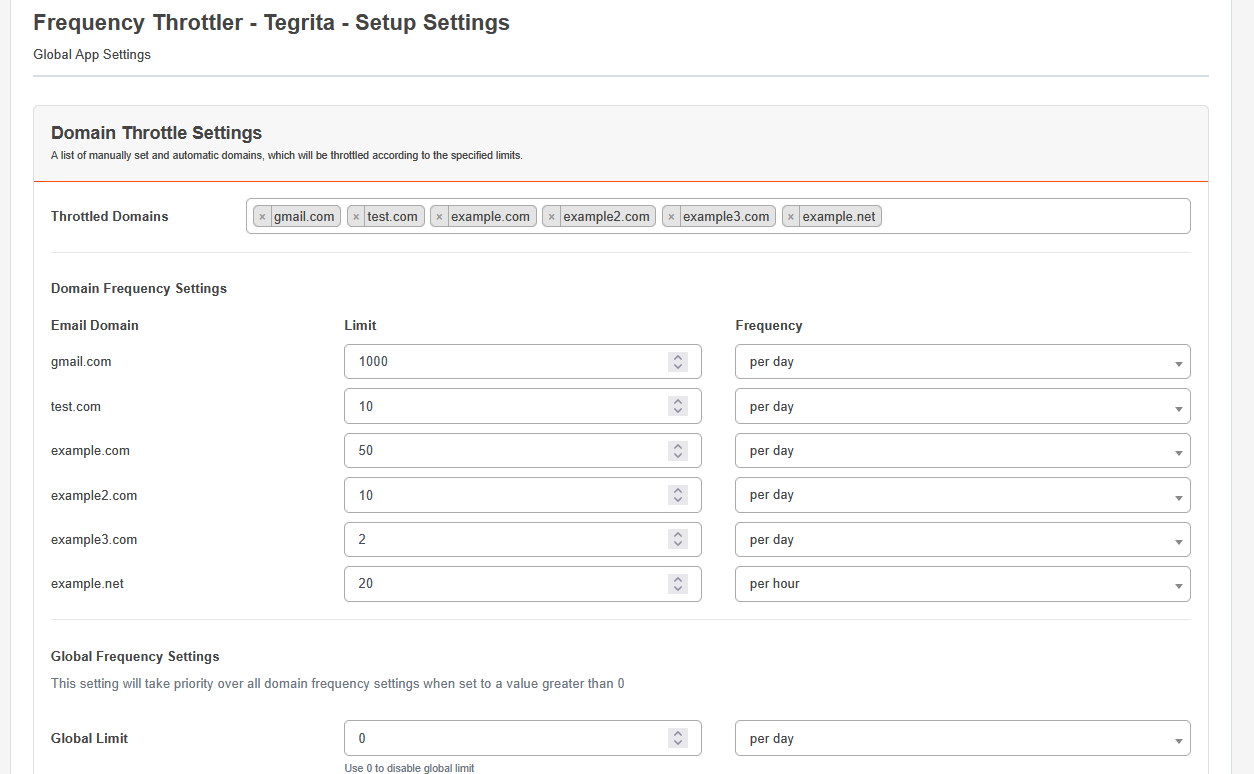
The following email limits can be set:
- Email Domain — This allows you to throttle emails to specific domains. This can be useful for lowering sends on problematic domains to prevent further blocking, or during IP warming.
- Global Limit — This is the number of emails you want sent across the instance in a single day or per hour.
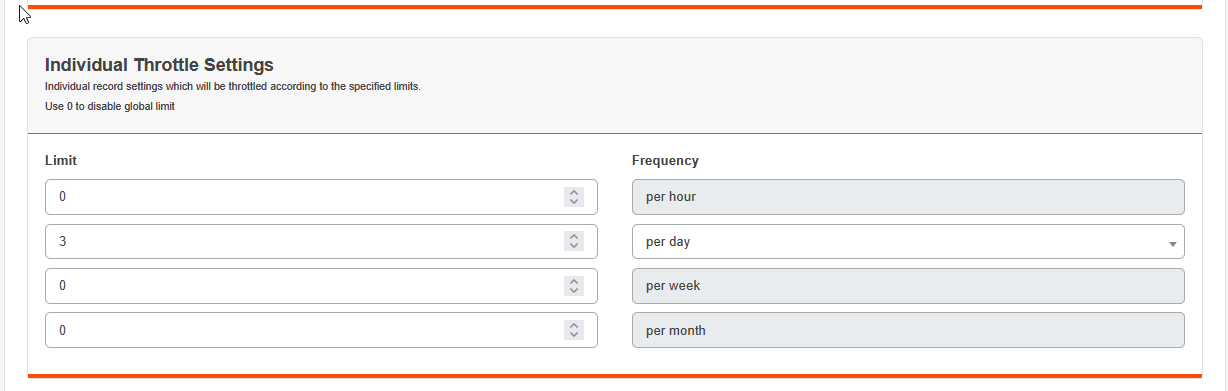
- Individual Limits — You can set a limit on a contact level. You have the option of setting an hourly, daily, weekly, or monthly limit.
Suppression Date Settings
Select the dates on which all users will be suppressed from sending emails. This is useful for holidays or other known dates where email sending should be paused:

The format of the dates needs to be in YYYY-MM-DD. All other formats will not be accepted, and the field will prevent you from entering them. Dates that are in the past will automatically be removed from the list.
Configuration Defaults
The global settings of the app also allow you to set the default CloudApp settings for when you place the app on a campaign canvas. These settings will be the default selections made on the app step:
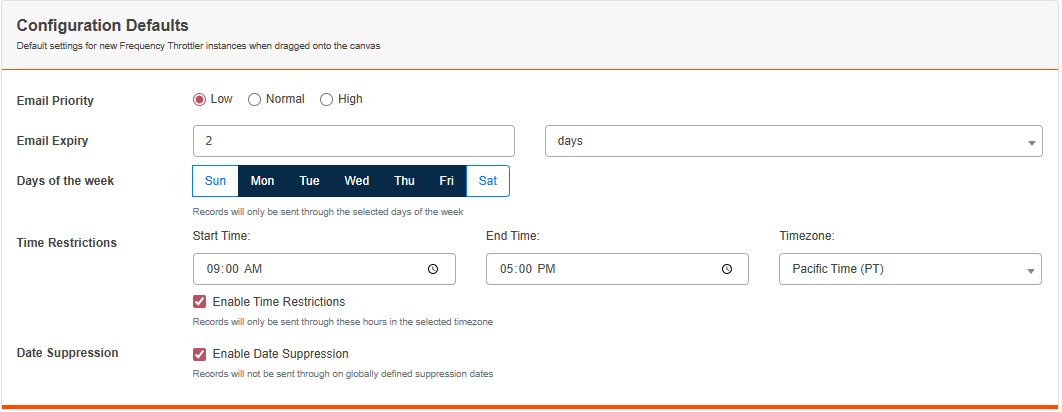
Once you have completed your selections and settings, click Save at the bottom of the screen to commit the changes. The changes take effect immediately.
Frequency Throttler Step Settings
The Frequency Throttler app is available as an action step in the campaign canvas and has the following configurable options:
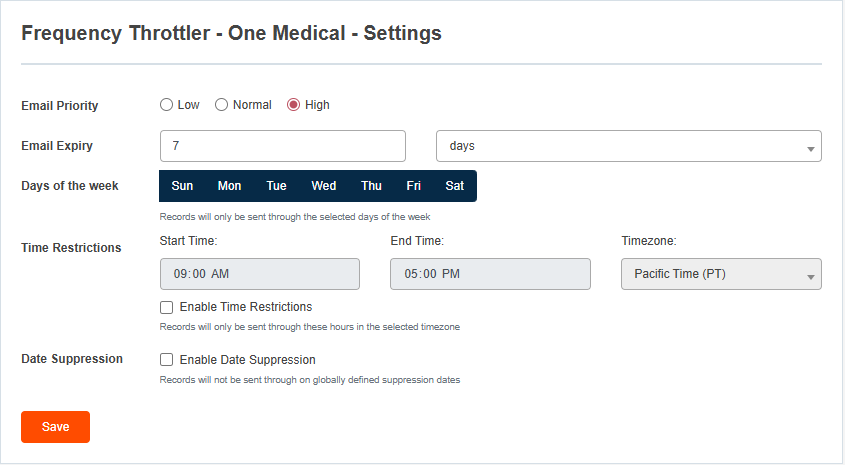
- Email Priority — This can be set to Low, Normal, or High. If the same contact is in multiple steps simultaneously, and is eligible to be sent an email, the step with the highest priority will be processed first.
- Email Expiry — This is how long the contact will wait in the step. If the
expiry is set to
0ornever, then the contact will wait in the step indefinitely. Contacts who do not pass through after the set time and reach expiry will error out in the step. You can also use error routing to automatically move these contacts to another step. - Days of the week — You can select the days on which a contact is eligible to pass through the step. Contacts can only pass through on the days selected if they are eligible.
- Time Restrictions — This is an optional setting where you can set the time range and time zone that the contact is allowed to pass through the step.
- Date Suppression — When enabled, contacts will not be sent through on globally defined suppression dates.
Restrictions and Limitations
The throttler app requires that an email step be connected in its "out" path, or else contacts will error out upon entry. Ideally an email step will be directly connected to the throttler step; however, there are instances where this cannot be done due to business requirements. For example, checking OM membership status prior to an email send.
If necessary, the throttler app can handle one decision step between itself and an email step, as long as one of the decision step paths is connected directly to an email step, for example:

The use of multiple decision steps between the throttler app step and an email step may result in contacts erroring out or other unpredictable behavior. If you find that this is needed, consult the Tegrita team to see if there is an alternative solution.
Using the Throttler App in Campaigns
When using the throttler step on a campaign, the following will be done:
- Place the Frequency Throttler app prior to each email in the campaign.
- Connect the throttler app to the corresponding email step.
- Configure the throttler app settings.
- If there is a set expiry time, configure the step to route errored contacts to the campaign's error list.
For example, the campaign below has the throttler frequency step between the wait step and the email send step:
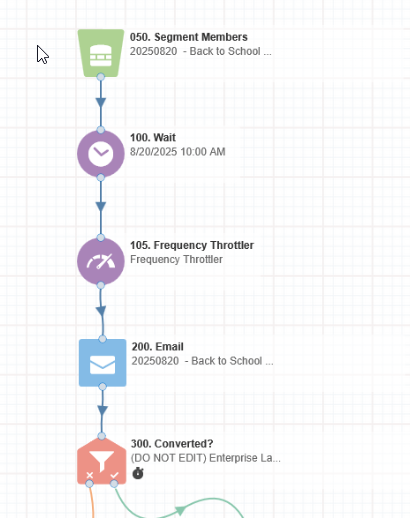
In the above campaign, the throttler settings are the following:
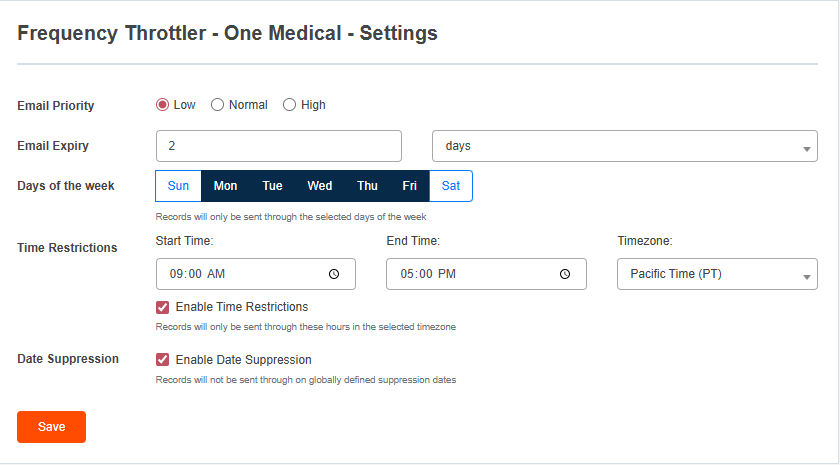
The settings indicate that the email is low priority with a send time of 9am to 5pm PST. Contacts will only be evaluated for 2 days. If a contact is still hitting a sending limit after 2 days, they will error out and be added to the campaign's error list.
Using the Throttler App in Campaigns that Require Batching
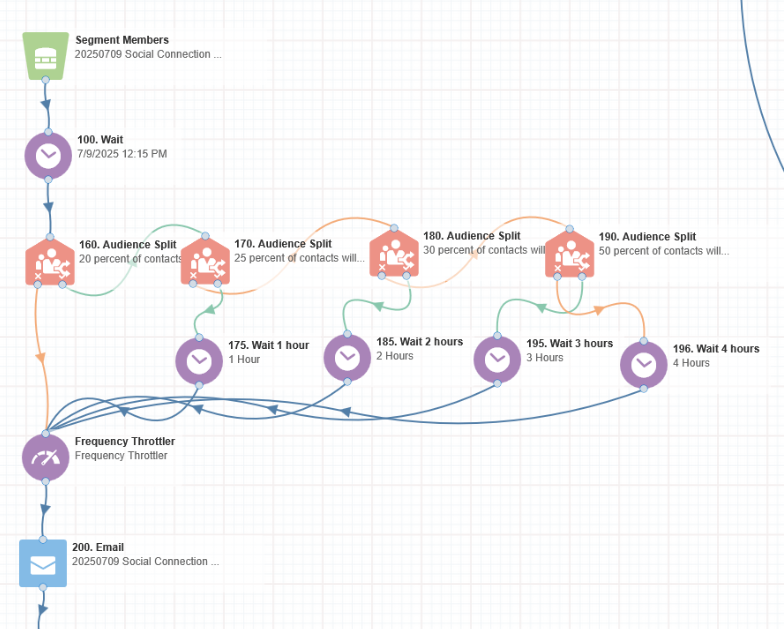
For large email sends that require the use of batching to split the sends over several hours, a manual split of the contacts prior to the throttler step is needed. In these cases, the campaign canvas will look like the following:
Frequency Throttler App Step Logging
You are able to view the logs for each individual app step. The following details are written to the log file:
- The contact ID and the reason they are unable to pass through the step.
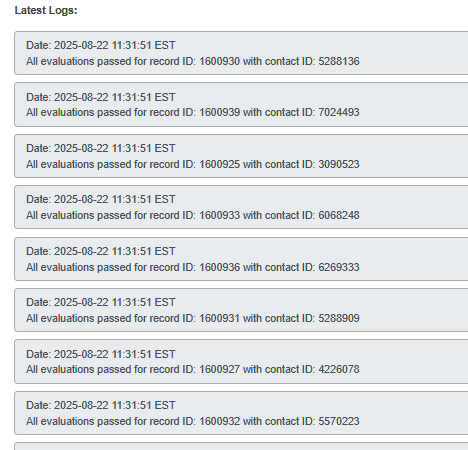
- If a contact passes all evaluations successfully.
- The number of contacts that get added to the step in a single batch.
To view the logs, click the I icon in the top right of the app step configuration screen:
Scroll down and you will see the log entries for this app step: