Informatica Integration
Overview
The Informatica Integration cloud app is an action step that lets you send data from Eloqua to an Informatica data repository. You configure the cloud app itself to specify the API and OAuth URLs to use, and which fields are available for use. Once the app is configured, you can use the cloud app action step to configure the data to send from a campaign or program canvas to Informatica.
Installation
See the Install this card instructions for guidance on how to install our Tegrita Cloud Apps.
Configuring the Informatica Integration Cloud App
Once you've installed the app, you'll need to configure one or more API profiles to use it. Here are the steps to create a new profile; updating a profile is very similar. To configure the API profiles, go to Setup > Apps and follow these steps:
- Find the Informatica Integration app.
- Open it and click the config (gear) icon at upper right. You'll see a screen that looks like this:
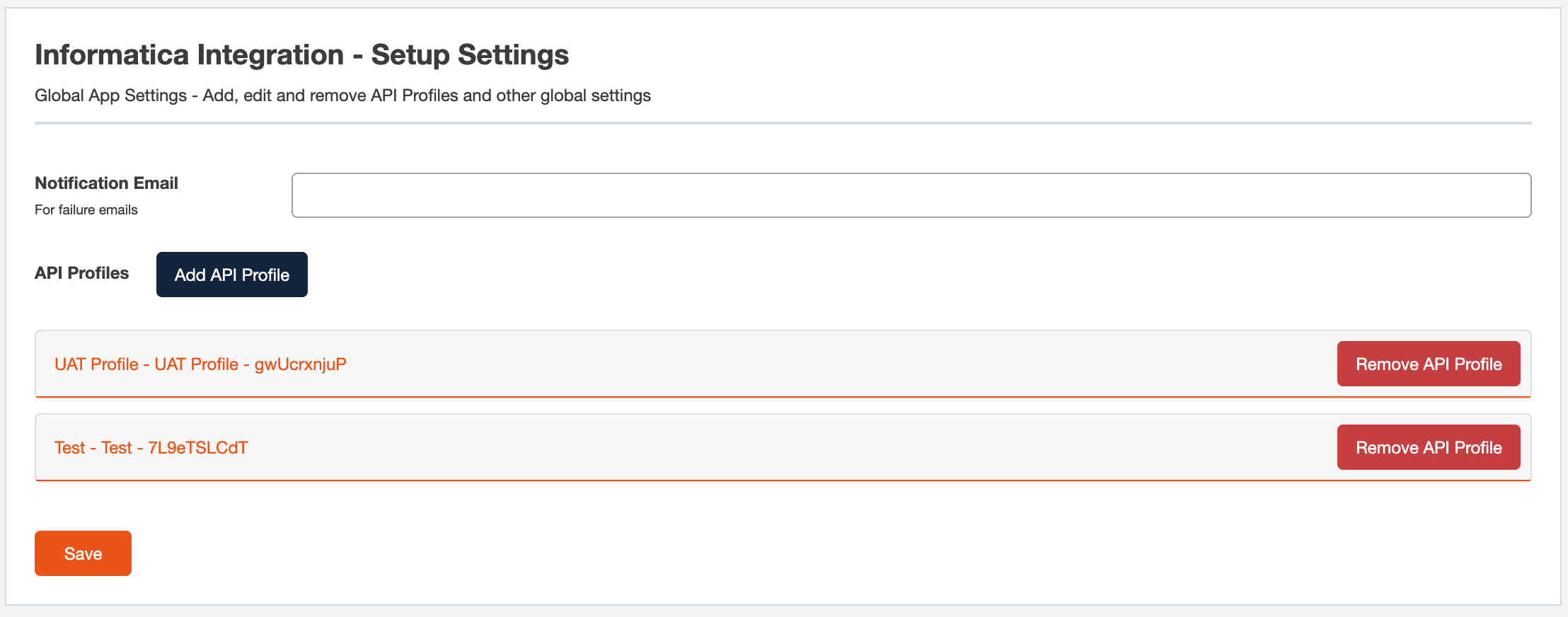
- To set the global notification email address, enter it in the Notification Email field. The app will send failure notifications for errors not relating to a specific API profile, or when a failure notification email address has not been configured for an API profile.
- To create a new profile, click the Add API Profile button.
- To open an existing profile for editing, click the profile name. To close the profile, click the name again.
- To delete a profile, click the Remove API Profile button.
API Profile General Information
When configuring a profile, you must provide the following general information for the API profile:
- Name — Give the profile a name.
- Description — Optional; provide some descriptive text for the profile.
- Endpoint URL — Enter the URL of the API endpoint appropriate for your Informatica integration.
- OAuth URL — Enter the OAuth URL for your integration.
- Client ID — Enter the Client ID value provided for your integration.
- Client Secret — Enter the Client Secret value provided for your integration.
- Date Format — Enter the date format to use for exporting data via the integration to Informatica.
- Notification email — Enter the email address to which failure notices will be sent.
Configuring the Payload Fields
After configuring the general information for an API profile, you'll need to configure which data to send from Eloqua to Informatica. You do this using the Payload Fields section of the configuration screen. Here's an example:
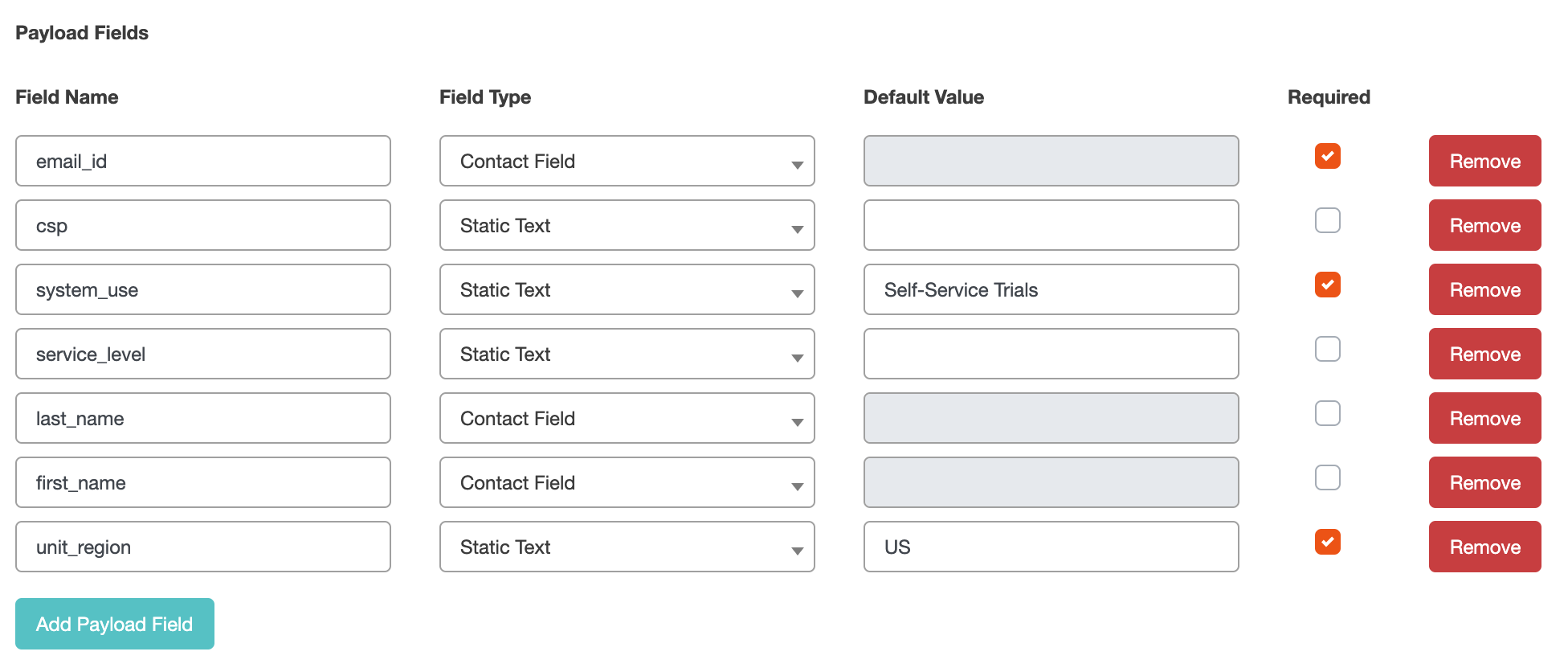
Follow these steps to configure the set of fields to send to Informatica:
- Click Add Payload Field to add a new field.
- Once you've added a field, enter the name of the Informatica field in the Field Name field.
- Use the Field Type menu to select the field type. These options control the source of the data sent to Informatica for each field. Choices are as follows:
- Static Text — This means that you expect the user to provide a static (i.e. unvarying) value for this field when configuring it on the campaign canvas.
- Contact Field — The user will need to choose an Eloqua contact field to map to the Informatica field.
- Current Timestamp — This choice will write the current date and time to the specified Informatica field.
- Date Picker — This choice will allow the user to specify a date when configuring the step on a campaign or program canvas.
- If you've chosen Static Text as the field type, you can specify a default value to be used for that field.
- Click the Required check box to force the user to configure a field when setting up an action step on a campaign or program canvas.
To delete a field specification, click the Remove button. Click Save to save the new profile, or updates to an existing profile.
Using the Informatica Integration Cloud App
Add the Informatica Integration Cloud App to a campaign or program canvas like any other action step:
- Drag it out from the Campaign Steps > Actions toolbar on the left side of the campaign or program canvas screen.
- Drag the action step onto a canvas, then double-click the cloud app icon and click the pencil icon at upper right to open the cloud app configuration dialog.
The first time you configure this action step, you'll need to choose which API Profile to use from the API profile menu. Choose a profile from the menu, then click Use API Profile. You'll see a new screen that looks like this:
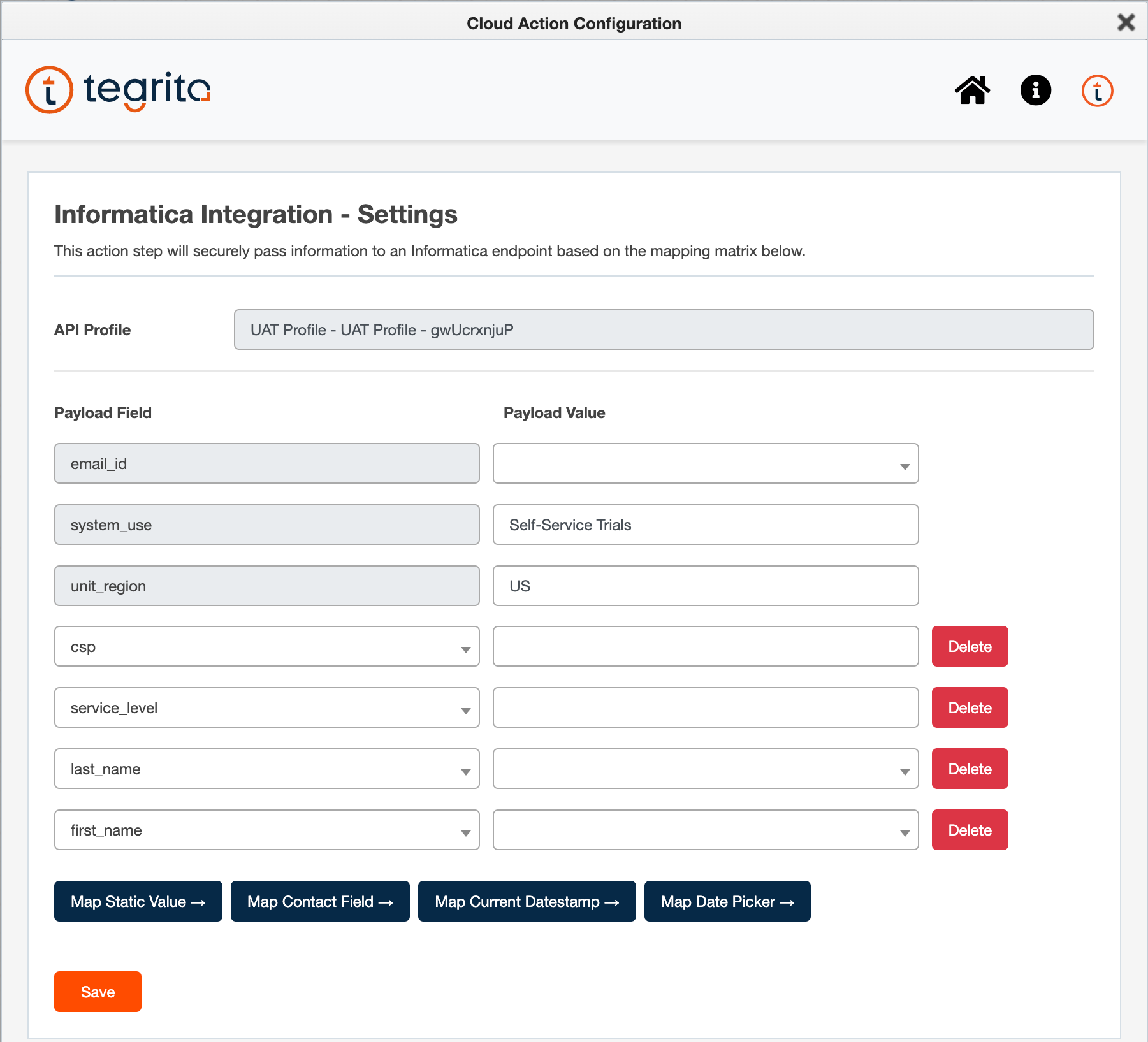
The screen displays one row for each field configured in the API profile. Fields that were not marked as Required in the API Profile configuration may be deleted by clicking the Delete button at right. Default values are shown for Static Text fields where appropriate. For each row, choose the Payload Value, depending on the configured field type:
- Static Text — Enter the text you'd like to write to the Informatica field.
- Contact Field — Choose the Eloqua contact field to map to the Informatica field.
- Date Picker — Choose the date to write to the Informatica field.
- Current Datestamp — No value needs to be provided; the current date and time will automatically be written to the specified field when a contact flows through the step.
Click Delete to remove a row. If you've removed one or more rows, you can use the black buttons to add rows back into the configuration. Once you're done configuring the step, click Save to save the configuration.
When contact records pass through the cloud app, the Informatica Integration app will create an API payload to send to the Informatica API based on the configuration specified in the action step.
Recent Error Display
Click the Information icon at upper right (the lower-case "i" on a black circle) to see a list of the most recent errors that occurred.